Showing posts with label Macbook Pro. Show all posts

Tuesday, August 27, 2013

Using an iMac as a display for other Macs

There is a feature on modern Macs known as Target Display Mode (TDM). Users who have an iMac and a Macbook Pro and may want to use their iMac as a large external display can follow these few short steps to use the iMac as an external display.

First make sure your iMac and Macbook Pro supports Target Display Mode by checking the chart below and make sure you have the support cable type.


Target Display Mode Compatibility List

iMac (27-inch Late 2009)
Mini DisplayPort to Mini DisplayPort
Mini DisplayPort or Thunderbolt
iMac (27-inch Mid 2010)
Mini DisplayPort to Mini DisplayPort
Mini DisplayPort or Thunderbolt
iMac (21.5-inch, Mid 2011)
Thunderbolt to Thunderbolt
Thunderbolt
iMac (27-inch, Mid 2011)
Thunderbolt to Thunderbolt
Thunderbolt
iMac (21.5-inch, Late 2012)
Thunderbolt to Thunderbolt
Thunderbolt
iMac (27-inch, Late 2012)
Thunderbolt to Thunderbolt
Thunderbolt


Plug your Macbook Pro into the iMac with a MiniDisplay cable to Thunderbolt cable and press ⌘-F2 on the display machines keyboard it will become a monitor for your laptop. 

Note: Both machines must be on and you must have both computer on 10.6.1 or higher. The machine running in TDM will continue to run all programs in the background and will stay awake as long as it is in Target Display Mode.

To get out of target display mode press the ⌘-F2 keys again on the machine keyboard acting as a display.

The camera, USB, Firewire, or other Thunderbolt devices are not available to the computer connecting in Target Display Mode. Just the display is accessed and used as an external monitor.

Sunday, January 27, 2013

The Value of AppleCare Plus

I have mentioned this before both on the podcast and in a number of Mac User Group meetings I have spoken at in the past. I do feel the need however to post about this again this week for reasons that will become abundantly clear in a moment.

AppleCare plus for your iOS devices is a must have for people on the go that rely on their devices. For $99 users get two years of coverage against device defects and against accidental damage. Let messy that one more time for emphasis. If you accidentally damage your device apple will replace it for $49 dollars. For the two year coverage of the device if you drop it on the ground and it breaks or if it falls in water Apple will replace the device for $49.

I just happened to be talking to a friend last Monday about AppleCare and stated I never really use it in the six years I have carried an iPhone or the three years I have carried my iPad. The very next day my phone slipped out of my hand and fell on its edge on a concrete parking lot. The result was disastrous.


After getting over the initial shock and surprise I didn't worry about it. I just picked up my phone opened my Apple Store app and through the cracked screen booked an appointment with a genius. I went right up to the store on my way home and they swapped it out in about twenty minutes. I paid for my replacement and bought a case to make sure it doesn't happen again. As soon as I got home I restored my phone from my iCloud backup and within about four hours of breaking my phone I was back in business and no one would have known it even happened if I had not posted it on Twitter.

Finally a few years ago I had my trusty 2007 MacBook Pro that was my primary computer. In the three years I owned the machine it went back for service for a few issues. One was a recall for a bad graphics chip, next a bad battery, later another motherboard for a different issue, then a broken lid latch that was keeping my machine from closing. Finally one night the hard drive started acting up so I Carbon Copy Cloned my hard drive to an external and booked an appointment.

Due to the number of issues I had experienced with this one machine Apple opted to replace my computer with a brand new 2009 MacBook Pro. Thanks to my AppleCare warranty I got a new machine and immediately bought a new warranty. Laptops and handheld devices go with us everywhere and sometimes take a beating. Again I can't stress enough the importance and peace of mind The AppleCare plus warranties bring for someone who constantly relies on technology for daily life.

Wednesday, July 22, 2009

Is Your Mac Ready for Snow Leopard?

So with Snow Leopard just over two months away is your Mac ready? Apple's guidelines for the new OS are fairly simple. Your Mac must have an Intel Processor, 1 Gigabyte of RAM, 5 Gigabytes of free disk space, and a DVD drive to install the disk.

All Intel Macs sold from May 2006 on are all able to run Snow Leopard. Depending on how old your machine is will determine the number new features which you can take advantage. For instance the first Macbooks, and iMacs sold from May - Nov of 2006 had Intel Core Duo Processors which had 32 bit CPU's. You can install and run Snow Leopard and you will get a performance gain but you will not get as dramatic a gain as you would on a 64 bit Mac sold after November 06 which was designated as a Intel Core 2 Duo. The Mac-mini was Intel Core Solo and Core Duo from May 2006 - August 2007.

To check which Processor you have in your computer Click on your Apple Menu, go to About This Mac, and look at the Processor line. If you have PowerPC you can not upgrade to 10.6 Snow Leopard. If you have an Intel Core Duo or Core Solo you can run the upgrade but can't take full advantage of the new 64 bit system.

Also on the next line down it will tell you how much RAM you have in your system remember 1 gig is the minimum. RAM is cheap now and upgrades are fairly simple on most Macs. I would recommend putting in as much RAM as your system can support and you can afford. You can never have too much RAM.

Hard Drive space is important. You need to have at least 5 Gigabytes free to do the installation but once the installation is done you will recover some space on your hard drive. According to Apple’s Specs possibly as much as 6 Gigabytes. Once this is done you can also use a program like Drive Genius 2 to remove the PowerPC code from your Applications and save more space.

Hard Drives are not that expensive anymore and hard drive upgrades on the Mac are fairly straight forward. The newer Macbooks and Macbook Pros pre Uni-body model have a lot of screws to remove to get to the hard drive so be careful and make sure you keep track of the screws. I will cover hard drive replacement in a future post.

For those with Macs that are pre Uni-body it seems the only feature we don't get with Snow Leopard is hardware H.264 decoding. The CPU can handle the decoding but hardware decoders are always more efficient and free up your CPU for other tasks.

For all Intel users this is going to be a good upgrade for improving performance in virtually every area of the system and making small visual enhancements. This is a bargain for the $29.00 price tag as well as getting us ready for whatever Apple has in store for us next with 10.7. in the next 18-24 months after Snow Leopard ships.

If you are on a PowerPC system and are starting to think about an upgrade of your Macbook, Macbook Pro, or Mac-Mini, or PowerMac computer now is the time! The Snow Leopard upgrade will only cost you 9.95 and you can start enjoying the added performance from the newer video cards, faster CPU's, and larger Hard Drives.

If you are on an PowerPC iMac I would wait until after October to upgrade. The rumor is new iMacs will be coming soon and then your machine will ship with Snow Leopard.

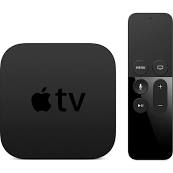
Apple TV

The more I use the new Apple TV the more I like it. The previous model was likable and easy to use but we had no options for live content. N...