This years World Wide Developers Conference was a blockbuster keynote with three big acts making up an amazing amount of news and information about things coming very soon to the Mac and iOS platforms. I don’t think Apple has made this many changes at once in their history. Coupled with the meteoric growth of the Apple brand in the last several years Jobs promised with the introduction of the iPad 1 thirteen months ago that Apple had a number of bold moves planned and they are not about to disappoint.
First this year the World Wide Developers Conference (WWDC) sold out in 2 just hours this year. There are now more developers of iOS and Mac OS than Apple can get space to work with at a yearly conference. In years past they didn’t sell out and now they are selling out in just hours.
As part of the normal Keynote Apple likes to talk about numbers. Apple now has 54 million active Mac users. 73% of all Macs sold are laptop computers. The PC market shrank-1% last year and the Mac platform grew 28% outpacing the rest of the industry five years running.
Act I
Lion Top Ten List
Apple has choosen to highlight the top 10 new features in the Mac OS and give a few more honorable mentions of other items at the end giving just a glimpse of the more than 200 new features being touted by the latest iteration of the OS.

First up multi touch gestures such as inertial scrolling, tap to zoom, pinch to zoom, and swipe for navigating photos and web pages. Currently you can also rotate images and a few other gestures in the current OS but Lion is really going to take full advantage of one through 4 finger gestures much like Mac’s iOS cousin. As a visual enhancement scroll bars appear when you activate scrolling (using a two finger gesture) to give a sense of place and movement direction to the user, and disappear when not scrolling to get out of the users way and free up screen space.
Second item on the agenda was Full Screen Apps. With the touch of a button on the top right of a Window any app will be able to take up the full screen, eliminating distractions and giving a clean appearance. With a simple swipe the user can jump between full screen apps or go back to the desktop or into the widgets.
Third is Mission Control the unification of Spaces Expose and Dashboard. with a single three finger swipe up gesture the user can show all spaces and current desktops you are working on with access to widgets and allow quick access to other spaces created by the user. The spaces which are virtual desktops appear tiled at the top of the screen. Just grab the plus to add a space or drag an application window to the top right to create more spaces. In the center of the screen windowed apps are displayed above the desktop grouped by application. A quick gesture over one application can fan them out for easier viewing. Along the bottom of Mission Control are thumbnails of all full screen windows giving the user a quick glance at everything that is open at the same time.
Fourth is a revamped App Store. The first App Store was an interesting experiment and we will see where it heads in this next iteration. This is the one feature that seems to have generated the most fear and hostility in the media. Rumors have flown that Apple will lock down the OS and stop people from loading software by other means and all kinds of conspiracies. I don’t see that happening although most users will use it just out of convenience. Since App Store was rolled out in 10.6.6 Snow Leopard just a few months ago Apple has become the #1 PC software channel for buying software. Adobe and Pixelmator has made more than a million dollars in just a couple of months each on sales. One click updating for all programs makes it as easy to keep your Mac software up to date as it is to keep your iOS apps up to date.
App Store will be built into Lion and will include in-app purchase for developers. Users will be able to buy a graphics app and then order plugins they use as an example right through the app. The new App Store is also adding Push Notifications and options for developers to Sandbox their apps for security. Also software updates will be done through a delta download so only the files that change will need to be downloaded.
The fifth major new feature is Launchpad. Once you download your app from the App Store or install via installer the app appears on the LaunchPad with a pinch gesture at the desktop LaunchPad appears and you can swipe between screens or tap on folders to group apps just like iOS. In theory making it easier to find apps on your Mac.
Feature number six, seven and eight all work hand in hand. Apps will remember their state and even what you have highlighted in a document. You can resume your work environment right where you left off even after a reboot of the computer. The Auto Save feature will incrementally save your document as you work. Type a line of text and close the editor no saving needed it just works. Auto Save also gives you the option right from the document name icon in the tool bar to revert to Last Opened, lock the current version if you really like it or make a duplicate of the file from right within the app and continue editing the duplicate. The last piece of this puzzle is Versions which allows you to control versions of your document. To conserve disk space it uses subfile versioning to only save the changes to the file and not the entire file over again. With a Time Machine like view you can look back through all of the previous versions of a document. When you send a document to someone it only sends them the version you selected and not the entire revision history. Past and current versions are all live documents so you can even copy and paste between them if you just want a small piece of a document you can copy it from the Version history and paste it into the current version.
The number nine new and exciting technology is Air Drop. This might finally make file sharing truly simple. Using peer to peer networking technology Air Drop shows you the people around you with their picture. Drop a file on the person you want to send the file and when they confirm they want to get it OS X creates a secure encrypted connection and transfers the file. Easier than a USB stick and faster than Bluetooth file sharing.
Number ten of course is the venerable and somewhat long in the tooth Mail app. Now with two or three column view options and displaying the message to the right instead of below the snippet pane by default. This new version of Mail sports a more iOS like user interface, support for Exchange 2010, and a whole new search system. Once the search system determines what you are looking for it converts it to a token and allows you to further refine your search. No more partial search and then scan the rest of the list you can drill down to messages from a person where something was not included and something else is. It looks like it has the potential to be a very flexible search system.
Also new to Mail in Lion is the Conversation view which shows your messages with page breaks instead of indenting and changing colors. Attachments are kept inline as well so the whole context of a conversation can be maintained. When the conversation is done they can be archived or deleted. The Conversations feature is totally compatible with all other mail clients but still looks like the quoted messages everyone else is used to seeing. Users can also turn the feature off with the click of a button.
To reply to a message just float over the message and the reply button appears. Click it and your reply window pops out and you are ready to reply.
The Grab Bag
Apple made a few announcements during the show and some have trickled out after that really don’t fall squarely in iOS or Mac announcements as they affect both or are currently minor changes that just didn’t feel like they belonged in a top 10 list or just showed up on a slide but didn’t get any real time to discuss.

Safari 5.1 currently in beta is adding a new feature called Reading List new to Safari like Instapaper but built into the browser and able to sync between iOS and Mac OS devices. This is a great way to get me to stop opening dozens of tabs to hold on to sites that I will go back and read later.
Face detection technologies. Shown off in Photo Booth new effects allow targeted facial enhancements like larger eyes, or birds flying around your head. While it is a fun toy I would be interested in seeing what practical applications these might have.
A few other features will include a new FileVault 2, Windows Migration Assistant, Lion Server add on $49.99, FaceTime Free, Preview Signature, Time Machine Local SnapShot, App Sand-boxing, Folder Merge, Search tokens, Yahoo Messenger in iChat, iChat service plugins, XSan built in, Resize windows from any edge, and Push Notifications where just a few that were on the slides but not even talked about.
Mac OS X Lion will only available in the Mac App Store with a single click to buy, download, and upgrade. The install weighs in at about four Gigabytes and installs in place no reboot from optical disk needed. One copy supports all your Macs you sign in to the app store with. The prices will be $29.99 and it is coming in July 2011.
Unresolved Questions
There were a few things not mentioned in this section of the presentation I would still like to know more about. Nothing was said about the rumors of the Windows File Share compatibility being totally rewritten. What about diagnostic tools for OS X if there is no boot DVD anymore? How do companies order copies of OS X Lion for their employees?
Act II
iOS 5
First Apple has sold 200 million iOS devices. Making them the number one mobile OS with 44% of market. This would likely include the iPod Touch, iPhone, iPad. There were 25 million iPads sold in first 14 months they were available. 15 billion songs have been sold on iTunes music store. iBooks Store has sold 130 million books in 14 months. 14 billion app downloads have happened in less than three years. Apple has paid out more than 2.5 billion dollars to developers who have written apps for iOS devices. Recently apps have been approved for use by FAA and AMA. In a recent update Webex has added multi party video conferencing that works on iPad2.
iOS Top 10
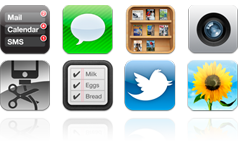
First up and long overdue is new notifications. Notification Center drops right out of your menu bar with a swipe of your finger. I was hoping for more from Apple with this given the amount of time we lived with modal dialogs but at least we have a better system now and it brings iOS up to par with Android in that respect. Apple has handled 100 billion push notifications since the launch of the service. Getting two many notices quickly became a problem and required a new way to handle notifications. Notices appear at top of screen while the device is being used then hides itself. A new lock screen shows notifications on screen and allows you to swipe to respond to the notifications or swipe to unlock your phone at the bottom.
It is a good first step for Apple in improving the notification system and I am sure more changes will come to it. I have been using it all day today and I will say it makes the user experience on the iPhone much better already.
Number two is a companion to iBooks called News Stand. Many magazines and Newspapers have already signed up for news stand. WIth a single location in the app store to access and subscribe to them. When a newspaper or magazine updates it is downloaded in the background so it is ready when you are.
Number three is Twitter integration through a single sign-on setup in the system menu and Twitter aware apps can use that to login. Twitter is also built into the Camera, Photos, You Tube, Safari, and Maps apps. Allowing you to send photos, links and text to your Twitter followers. With Twitter integration iOS can also add @twitter handles to your contacts list and update your Contacts photos in your address book with Twitter photos if you like.
Single Sign-on for twitter apps. Support for multiple accounts. Twitter is integrated into Camera and photos, videos from You Tube, links from Safari, and businesses in Maps, Contacts integration that can update photos in your contact list and add @names to your contacts.
Safari has become the most popular Mobile Web Browser with 65% market share versus 27% Android which still uses the open source core of Safari WebKit as the basis for its browser. This is according to Net Applications US April 2011. The new Safari includes the Reader feature to remove clutter from the webpage and let you focus on the content. You can now email the contents of a story instead of just a link to the story. Also the new Reading list feature will remember the links you want to visit later and syncs between iOS devices. Safari has also added tabbed browsing like its desktop counter parts making it more natural to move between Safari on the desktop and on the iPad.
Reminders a new app in iOS gives us to do lists and in an elegant way. Set reminders based on time or on geo location. Tell a reminder to trigger an alert when you leave somewhere or when you arrive somewhere. This is going to a huge feature and it is capable of handling multiple lists and with a swipe move between lists. Reminders also supports iCal sync and Outlook sync with Exchange.
Camera is now faster to access by putting the button on the lock screen. Even if a passcode is set you can take pictures but do nothing else until you enter the passcode. The Volume Up button can now be used as a shutter button when the camera is open. Grid lines are now an option to help you compose the shot better and now zoom is done through a pinch gesture and AE/AF lock by holding your finger on the screen.
Photo editing can now be done right on the iPhone or iPad. With features like crop, rotate, red eye reduction, auto enhancement are built right in. With the iCloud Photo Stream feature you can take a picture on your iPhone and have it sync right to your iPad for editing.
Number seven to get a facelift is our trusty Mail App with Rich Text Formatting, control indentation, draggable addresses between to cc and bcc, and support for flagging mail items. The search engine now includes entire message contents on iPhone and the mail server. iPad picked up a swipe to inbox gesture in portrait mode. Support for S/MIME has been added for the security conscious. Plus the Dictionary is now a service built into Mail and all other iOS apps look up a word in the dictionary with a tap and hold.
Plus Apple demoed new keyboard styles on the iPad with a thumb typing split keyboard . Just grab the handle on the keyboard key and pull it up to split the keyboard into side by side thumb keyboards. This will be great for people who want to type in portrait mode while holding the iPad with both hands.
The eighth innovation in a post PC era is now here. iOS supports over the air updates, Delta updates only download what changed , a setup wizard built in longer requires a computer to configure your device. Users can now create and delete calendars right from within the device. Creating and deleting mailboxes can be done right in Mail. You can now use an iPad or iPhone as your only computer!
With over 50 million Game Center users in just 9 months Game Center is bigger than Xbox live with its 30 million users since launch. The new Game Center adds Game discovery to find new games, buy and download games right from Game Center, photos to see pictures of your friends. Plus a new points system to compete with your friends in games. Also added support for turn based games right into the OS. This will free developers up to focus on the game play.
The tenth new feature is iMessage for iPhone, iPad, iPodTouch built in messaging for all iOS customers. Everything a messaging app does, text, message, photos, videos, contacts, group messaging plus Delivery Receipts, optional read receipts, and typing indication. Messages are pushed to all devices so you can start a conversation on one device and pick it up somewhere else. iMessage works on 3G and Wi-Fi and encrypts the messages when it sends them.
This has the potential to really reduce the number of SMS messages that people send and I am sure something the carriers are not happy about. Apple didn’t give a heads up to the carriers before announcing this so they found out when the public did that the days of charging outrageous fees for simple text messages may be coming to an end. This is great for customers and if iMessage can’t deliver the message you can still fall back to SMS right in the app or send SMS to non iOS customers.
Coming soon to the Apple TV is Airplay Mirroring mirror the whole iPad screen to your AppleTV. iTunes now supports Wireless iTunes sync and auto wifi backup of your device. Plus the experimental multi-touch gestures introduced to developers in 4.3 will now be standard in iOS 5 including swipe up to show the task manager, five finger pinch to close an app, and four finger swipe to move between apps.
iOS 5 will be available for the iPhone 3GS & 4, as well as the 3rd and 4th generation iPods, and all iPads. iOS 5 will be shipping this fall.
Act III
iCloud

Apple is dropping MobileMe which is leaving a lot of questions swirling about the future of iDisk and web hosting on MobileMe. For now the new iCloud initiative does bring us some interesting new technology. First the computer has been demoted to a device in our digital lives and now the cloud is our new hub. Devices don’t have to even be removed from your pocket to sync. iCloud is being tightly integrated with apps so it is all automatic and “It just works”. Steve Jobs admitted MobileMe wasn’t their finest hour and learned a lot from it.
First Mail looks like it will continue to work as it always has. Everything syncs to all devices and it just works. Plus in a little swipe at Google they mentioned no ads on the webmail app.
Contacts now auto stores on the cloud and pushed to other devices to keep them in sync. This has been updated on MobileMe and tested extensively. It has worked great for me over the last several months.
Calendar has moved to the CalDav format and now includes calendar sharing. You can share calendars with other people and both can update the group calendar.
The App Store buy apps on a device and re-download anything in purchase history even if app is not on the device. Future purchases iCloud downloads the app to all devices automatically.
iBooks offers bookmark syncing via iCloud. Buy a book on one device it automatically downloads to all devices. Read a few pages on the iPad and have to leave, pickup right where you left off on your iPhone.
iOS Backup for those that want to be PC free. Enter your AppleID and your Purchased music, apps and books, camera roll photos, videos, device settings, and app data backs up wirelessly daily over wifi.
Documents in the cloud is a service that when you create a Pages document on say your iPad it automatically stores in the iCloud. Then pushes to all your other devices with Pages. So far this is built into Pages, Numbers and Keynote. This new feature works with all iOS devices as well as Mac & PC too. The API has been released to developers so others can start using it as well.
Photo Stream takes a photo from any device and automatically uploads to cloud and places it in the camera roll of all other devices including the Mac. Importing photos to Photo Stream from iPhoto library is also supported. Photo Stream even works with PC pictures folder and is built into Apple TV. Photo Stream automatically stores the last 1,000 photos in iOS and the Macs or PCs stores all photos locally. The Apple servers store images and videos for 30 days to give Macs and PCs time to sync the photos or the user to save it permanently by moving pictures to existing or new albums.
iTunes in the Cloud shows songs you have already bought and can be re-downloaded anytime. Buy on one device and auto sync to all devices up to 10 devices now.
iCloud is Free and will be available in the fall. MobileMe is going away and will be discontinued in April 2012. iCloud is offering 5 GB of storage for backup not counting Purchased Music, Apps, & Books those don’t count against the cap and neither do photos. It seems as though only documents will count against the 5 GB cap.
Some parts of iCloud are available Today. A Developer Beta is also currently being tested for a roll out in the fall coming with iOS 5. iTunes in the cloud is live today on iOS 4.3 devices with no update or download necessary.
One More Thing
iTunes Match Service will scan your ripped CD’s and match it to songs in the store. With over 18 million songs in the store it is likely most will match. This will afford users the same benefits of music purchased from iTunes 256 kb AAC, re downloadable from the cloud, etc. It only takes minutes to run on an iTunes library. If it isn’t in the library it will uploaded to your own digital locker. iTunes Music Match will cost $24.99 a year.
I still have a few questions about iTunes in the Cloud and iTunes Music Match service that have yet to be answered. Like is streaming an option or does music always have to be downloaded? What about videos will we be able to do this with them as well at some point?
Lastly Apple finally talked about the North Carolina Data Center. It is Apple’s 3rd and largest datacenter. It has been designed to be as eco-friendly as possible and it is enormous to accommodate all of these new cloud services and sync technologies.
Apple still has a lot of questions that need to be answered regarding the other services in MobileMe and what will become of them. Also questions about other new features like enhanced voice recognition was never touched upon either. Corporate licensing for OS X and OS X server was never touched on either. Hopefully over the next several days more of these questions will be answered by Apple.
Just after the keynote Apple quietly released a new version of iBooks 1.3 that included a Read To Me feature for children where a narrator reads books and the words in the iBook highlight and enhanced books also include audio and video elements. So while Apple made the keynote an overview of 29 large things they are doing in OS X, iOS, and iCloud it seems as though Cupertino has a lot of other things going on at the same time and we are just starting to see the large changes that are ahead.


 Yoink is a tiny app with a big place in my work flow. As applications go Yoink doesn’t do much but it is now something I recommend to everyone who uses Lion and likes running apps in Full Screen mode. To use Yoink simply download it from the App Store for the low price of $2.99 and launch it. I can’t stress enough you should put this in your login items so it starts every time you startup your Mac.
  Full screen mode is a bit of mixed bag. It does look great on my 17” Mac Book Pro and I am using it heavily there. However once I move to my 27” iMac Desktop with a second 24” screen attached I don’t use it anymore. The second screen is just covered in linen and is pretty useless. The screen is so large that full screen just doesn’t feel useful. If you get an app in full screen mode and want back out just go to the top right side of the screen and the menu bar will reappear and give you a button to click to return to windowed mode and you will be returned to your windowed desktop.
  LaunchPad I don’t currently hold out much hope for. I have spent hours setting it up and I just don’t seem to really use it yet. Normally when I launch apps I use the command and space keys and type the name of the program in spotlight. I can see when it would be useful at some point. When you have organized everything and you know you have a video app but just can’t remember the name of it, LaunchPad could be useful. It just takes a lot of time to get it organized and I finding a lot of programs like un-installers that are just hanging out there that should be hidden in a folder on the last page.
 The rebirth of Spaces and Exposé into Mission Control was a great move by Apple. It still has all the power that the power users have come to know and love with a new simplicity that will make it useful even to the novice user. I have heard some complaints in the first couple of days that exposé features were lost. They really weren’t you just need to turn on the gesture in your trackpad settings. With a four finger swipe up your are in Mission Control and a four finger swipe down you are in Exposé. Now the documents below the line in Exposé are not just items minimized in the dock but recently opened documents as well to give you fast access to your documents.
  Spotlight has been around for a while and not particularly smart but had limited use. Spotlight has gotten some nice improvements with this update like a preview feature that displays a thumbnail of a document so you can preview it before you open the document. The search seems a little more refined now and more useful than it has been in the past. Search the Web and search Wikipedia have now been added to Spotlight. I still use it the same way I did before as an app launcher but it is more useful now than it was before. Like in the Snow Leopard version of Spotlight you can still do quick math problems if you just need to solve an equation quickly by typing it right into the search.

 Next click on the Signature button
  and sign your name to a white piece of paper. Finally hold the paper up to the camera with your signature lined up with the blue line. Preview will capture your signature and save it. Then in the future you can click on your signature and add it to any document.
 For the first time in years I haven’t felt the need to have Chax installed on my Mac. First the iChat Buddies is now all in one window making people I want to talk to easier to find and grouped by Co-Workers, Friends, Family, etc. Once I open a chat with two people I am now presented with a single chat window showing both peoples names and allowing me to click back and forth between users. If a message comes in from a person in the background a preview of the chat appears under their name until I click on them to return to the chat. The iChat changes were subtle and it is still missing the ability to get out a screen sharing and back to a video chat without ending the call. If anyone from Apple reads this please fix that it is really annoying.
 Who hasn’t lost or forgotten a password from time to time? Well, with this new feature connecting your User Account to your iTunes account gives you a way to reset your User Login password with your iTunes ID. This will not reset your Keychain password so if you store passwords in your keychain they will be lost when you delete the keychain you no longer have access to anymore. However this is an easier process than getting out the boot disk (if your Mac has a DVD drive) rebooting from the disk and resetting the password.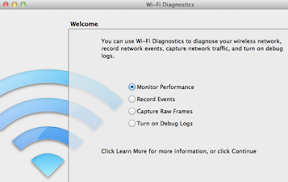

 AirDrop there isn’t too much to say about it, it just works. It requires zero configuration and it is very secure. The only downside is you have to be on late 2008 or newer Mac hardware that takes advantage of Wi-Fi Cards that can support an Ad-Hoc and Infrastructure network at the same time. AirDrop is off until the user clicks on it in Finder then it locates other people with AirDrop on in the immediate area. They are represented by an icon with their login picture. If a user wishes to send a file just drag and drop it to the recipients picture and it asks the user to confirm they wish to send the file. Then on the recipients computer a dialog appears telling the user the sender wishes to send you a file do you wish to accept the file. If the recipient clicks yes then the file is transferred over an encrypted connection. The process couldn’t be any simpler.