Showing posts with label Mac. Show all posts

Wednesday, October 21, 2015

The Magic of Apple's Newest Keyboard & Trackpad


Last week early orders of the new Apple Magic Keyboard and Magic Trackpad started arriving at door steps even before they started arriving in stores. I have now spent a couple of days on the new Magic Keyboard and Magic Trackpad and here is what I have found.

The keyboard with the new internal butterfly mechanism and larger key caps feels very nice to type on. Quick lightning charging and simplified paring makes it an excellent keyboard for daily use. It came nearly fully charged and I plugged it in for a few minutes to see the new auto pairing feature. Only time will tell how long internal battery will last but in four days I haven't seen the battery percentage drop at all yet. 

Taking it out of the box and plugging it in to the computer with the lightning cable made the keyboard automatically pair with the computer making it even simpler to setup than going to Bluetooth and entering the six numbers that appear. 

Plus who hasn't had that moment when they realized they needed a new keyboard and mouse and had turned off the feature to automatically open the app to connect a keyboard and mouse when one wasn't detected and been stuck going to look for a wired keyboard and mouse to setup the wireless ones? 

Well now just plug it in and it pairs and is ready to go. Then you can unplug it at your leisure. The thing some people may not like about the much thinner and smaller physical keyboard size is now like on the mobile computers the up and down arrow keys share a single key cap. Sorry gamers I know you won't be crazy about that. Even I am not a huge fan of it. Although now my laptop and desktop keyboards have the same approximate feel to them. 

It also struck me that Apple had an opportunity to add a finger print reader to the keyboard or trackpad and didn't do it. I can unlock any other iOS device and use credit cards with my finger print. I really would have expected to see the keyboard include a finger print reader so Wallet can be used from my desktop and finally be able to use Apple Pay from my desktop. 

The TrackPad is a huge improvement. It has a much larger surface area and features Force Touch. Allow users to have left click, deeper left click, right click, and a whole host of gestures to make the desktop more useful. As developers start taking advantage of Force Touch I am sure we will see it more in desktop applications. It takes a little getting used to the Force Touch feature as I occasionally end up clicking too hard when trying to drag a file somewhere and force touch instead of left click by accident. I am sure it is an adjustable setting. For now I am just trying to get used to lightly tapping on the trackpad to see if I get used to it before I start changing settings. I try to test out the defaults first to see how it works before I start customizing the experience. 

Overall the new Magic Keyboard and Magic TrackPad has made my two year old iMac feel newer and give me access to all of the features of OS X 10.11 and I am sure as time goes on we will see more features take advantage of Force Touch. 

Now the new Magic Keyboard is a price jump of about $20 to $99 and the Magic TrackPad increased in price from $69 to $129 a $50 price increase over the previous models. So far I have only replaced two of the three keyboards and trackpads I use given the price jump. However, I believe the devices are worth it given you will not be buying replacement batteries again and given how long the previous models lasted these new devices will likely last many years to come. So think of it as a long term investment in your technology and it is the piece of technology you touch as much as or more than your smart phone so it should feel good to use. 

Sunday, March 1, 2015

Predictions for the Apple Spring Forward Event

I love writing prediction pieces, it is fun todo and gives me a chance to imagine what I would design or like to use if it was made available. We already know Apple is going to talk about details of the Apple Watch. We will finally get pricing on the mid range and high end watches, as well as ship dates and pre-order dates. I can't wait to line up to get my Apple Watch.

Analysts are predicting 5 million units have been made, I think that will not cover the opening weekend demand for the new device. I bet sales will be strong and supplied constrained until summer. The entry level watch and mid tier the big sellers with just a few high end watches being sold. Estimates that the high end watch being around $5,000 is probably not far off base. For that price Apple I believe will announce the devices to be the most upgradable device ever with internal component upgrade options in the future for a substantially more modest price or the Edition and maybe the mid tier watches.

The demos will of course include some highlights from developers doing some amazing things with the watch software. I hope some of the health information rumors are just that rumors, I hope the device has the ability to monitor stress levels and remind the wearer to calm down. I know this writer could use that reminder from time to time. I will be surprised to see if it can monitor blood pressure but heart rate should be fairly simple.

I will say that accessories for the Apple Watch will also sell very well. I would bet that most owners of the mid tier and edition models will probably choose two or three band options and the price of the magnetic bands or more modern clasps will certainly be higher than what we see with traditional watch band tech.

Overall I expect that Apple watch to be a huge hit and outsell the rest of the smart watch industry and likely take the traditional watch industry by surprise. Even if a small percentage of iPhone owners buy Apple Watches it will still be a huge market.

The big surprise will come in the form of the One more thing. Apple never just rolls out one item at these events. The rumor mill has been loaded with talk of a pen, a 12" iPad, and a 12" Macbook Air. I am just seeing a flashback to the iPhone announcement when Apple announced three new products and they are all the same thing.

My prediction is the iPad Pro 12" and the Macbook Air 12" will actually be the same device. A
modified version of iOS and OS X, with better multi-tasking and enhanced UI for better touch interface. When docked with the keyboard it would behave like a Macbook Air, when undocked it would behave like an iPad. The ability to run both OS X and iOS Apps. Not with emulation but by putting both an ARM processor and Intel processor in the same machine. Toss in a high quality pressure sensitive pen and you have a strong competitor to the Microsoft Surface tablets. Which I have used and find them to be likable devices. Some elements of the UI are still too small to be effective for touch but I am sure Apple UI designers would address and correct that.

I could envision the workflow being something like quick communications and notifications coming in on the watch. Slightly longer interactions and light work, pull out the 10" iPad tablet for single tasking work and entertainment. Then the larger tablet for serious work, multi-tasking and laptop replacement when traveling for days and the large desktop machine for the heavy duty computing tasks and large amounts of data storage.

I hope to see a new announcement regarding AppleTV. Something that will give the cord cutters a reason to rejoice and some new technology around home to make home automation easier and more user friendly. They may even throw in an announcement on upgrades to iCloud for enhanced security and maybe a new feature or two.

Saturday, June 29, 2013

OS X Preview Quick Tips

This week I want to share a few Preview Quick Tips. 

Opening multiple PDF’s in a Single Window


First when opening multiple PDF documents in one window open Preview, Preferences, General and change the Open Groups of files in the same window default to Open all files in one window. Select a group of files, right click and choose open. All PDF’s in the selection will open in a single window. 

The default setting of Open groups of files in the same window opens a window for each group of files you select. If you pick three files, skip a file, pick two more, skip a couple and pick one more it will open in three Windows.


Merge multiple PDF’s into a single Document


Simply print to PDF all the documents in the single open Window

Choose Print
Choose All Pages
Click the PDF button select Open PDF in Preview. 
The new document will be opened in Preview all pages as one single document.


Want to delete a page from a document or move a page somewhere else in a document?

Click the view Menu button and choose Thumbnails. 


Highlight the page you wish to delete and press the delete key on your keyboard. The selected page will disappear. If you want to move a page simply drag the page thumbnail to another location in the document.


How to Sign a Document?


First you will need to create a signature the first time you sign a document. After that the signature is stored encrypted in the keychain.

Click on the Edit button click the signature pull down and choose Manage Signature.


Click the plus button to add a new signature. Your web cam will tun on a display a video with a line. Write your signature on a piece of blank white paper and hold it up to the camera with your signature on the blue line. Once the computer captures your signature it will be displayed in the preview area. Click on to create your signature.


Once the creation of the signature is done for the first time all that needs to be done is the following steps to sign a document.

You can use Preview to sign document without printing and scanning. Simple click on the edit button in preview and choose the signature icon.

Sunday, March 25, 2012

Yoink! Reviewed

ScreenShot2012-01-22at9.59.17AM-2012-03-25-20-18.pngYoink is a tiny app with a big place in my work flow. As applications go Yoink doesn’t do much but it is now something I recommend to everyone who uses Lion and likes running apps in Full Screen mode. To use Yoink simply download it from the App Store for the low price of $2.99 and launch it. I can’t stress enough you should put this in your login items so it starts every time you startup your Mac.

When you grab a file from your desktop or from Mail in full screen mode or anyplace where you click and drag a file a gray box will appear on the portion of the screen you designate in Yoink’s preferences. Drag the file to the gray box and Yoink will hold it for you while you move to different desktops or to different full screen apps. Then just grab the file and drag it to the app you want to use the file on.

For example you are working in email full screen and someone sends you a file attachment in Mail. Drag the file attachment to Yoink and move to the screen you want to use the file attachment on. Say you are going to your main desktop and dropping a photo on Pixelmator to do some editing. Once on your desktop just grab the file from Yoink and drop it on the Pixelmator icon.

Yoink even had a quick look button so you can preview your document if you have more than one being held by Yoink. Once you clear your files out of Yoink it quietly disappears. You can even set how long you want the window to appear when you grab a file. I opted to stick with the default 5 seconds.

The only thing I would change about Yoink is you only get two choices where to put the Yoink dock. Center left or Center right. I would love to be able to put it at the top, middle, or bottom of the sides of the desktop. Yoink was updated after I had written this to include additional positions for the Yoink Window. Top and bottom of the screen is now available! Great job and this is an app I can truly no longer live without. Everything else about this app is a perfect addition to my workflow as I start using more and more apps in full screen modes, Yoink will be the one application I absolutely cannot live without.

Note: The text in blue was added after the initial review was released.

Friday, August 5, 2011

The MacGuy visits a Microsoft Store

Much to the surprise and amusement to my readers I checked in on FourSquare from the Microsoft Store at the Mall of America stating I went into the store and didn’t burst into flames. For those of you who don’t know me personally but read my writing here and in Apple Spotlight Magazine and listen to the TechBits podcast may not know is that your friendly neighborhood Apple Certified Support Professional and other affiliations is a mild mannered Support Engineer by day supporting both Mac and PC and my alter ego is the MacGuy writer, podcaster, and general Apple fanboy by night. It is sort of like being a super hero without the cape.
IMG_0138-2011-08-5-11-11.jpg
We have all heard the news about Microsoft’s 11 Retail Stores and the stories about 45 more coming in the next year across the US except for Alaska. Well, on a recent trip to Minneapolis I decided to visit the Mall of America to visit the Microsoft Store and its arch rival the Apple Store just across the hall.

The look of the two stores is very similar downtown the liberal use of white walls and generous lighting and light wood tables. Microsoft does throw in some splashes of orange and video monitors that wrap around the store instead of putting up ad banners. The MS store employees where red shirts to the Apple Store employees use of blue. Apparently the Microsoft Store designers never watched Star Trek.
IMG_0142-2011-08-5-11-11.JPG
I did notice in the hour I was there no one walked out with any snazzy new Microsoft gear. In fact the employees seemed a tad distant and didn’t talk to me unless I approached them and asked questions. Since Microsoft doesn’t sell much hardware except for the Xbox and keyboards and mice the store is loaded with Sony, Dell, Asus, and a few off brand looking machines. The store was adorned with four Microsoft Surface tables. Not for sale that I could tell and not as impressive in real life as in the videos.
IMG_0140-2011-08-5-11-11.jpg
Overall it was a poor imitation of the Apple Store experience. Although lots of Xbox’s and Connect systems scattered through the store provided hours of entertainment to kids of all ages. I supposed it is cheaper than the arcade around the corner.

A Microsoft store employee who spoke to me on condition on anonymity confided in me when I asked about the striking similarities between themselves and store across the hall stated “We like to take something that obviously works well and improve upon it.” Later in our conversation this employee pointed out something missing from the Microsoft Windows 7 computers stating the “Microsoft makes a deal with all vendors that put hardware in our stores. No bloatware is allowed on these computers. These machines only have Microsoft Windows software on them and Microsoft security software nothing extra.” I will note one of the Asus tablets that converts into a laptop they were showing did feel very sluggish when using it and the similar tablet right next to it for a few hundred more was a much better performer. Even in the Microsoft store they allowed under powered hardware in that makes their software look bad. Incidentally that under powered hardware was still more expensive than a Macbook Air which is much faster and more usable.
IMG_0141-2011-08-5-11-11.JPG
Nothing in the Microsoft store I looked at came close to the usability of the iPad, the elegance and speed of a MacBook Air and notably missing from the line up of tables of gear was a selection of Windows Phones. Maybe I missed that section of the store. There was a large window display reminiscent of the iPhone displays with a LCD monitor turned on its side showing video of what an iPhone can do. They had the Microsoft version in the front window of the store but I never noticed phones out to be touched or used. Also conspicuously missing was MP3 players. I guess Microsoft figures those will never catch on.

Finally putting the Microsoft store across the isle from an Apple Store and this was not an accident all of the 11 Microsoft Stores are in close proximity to an Apple Store. Just seems to highlight the deficiencies in Microsoft’s strategy. The one winning product they have the XBox is relegated to the back of the store and looks more like an arcade than a retail store. The employees aren’t engaged and don’t feel like they really believe in what they are doing. It seems as though Microsoft thinks if they make themselves look like the Apple Store that one of two things might happen. Either one they will confuse would be consumers into walking into the Microsoft Store instead of the Apple Store and selling them a computer. Or two if they make themselves look as much like Apple as possible somehow that will make them magically hip and competition for Apple.

The problem is the PC industry engaged in a race to the bottom on price and innovation suffered. Since Microsoft doesn’t control the hardware at all it makes it impossible for them to move in the direction they want to go. Apple can and does tie the hardware and the software together tightly to make a great experience. Something Microsoft does not have enough control over their vendors to accomplish.

In short after spending time their I have to agree with an analysis of the Microsoft Store by John C. Dvorak the Microsoft store is not a good idea. It seems as though Apple is the only one who has figured out how to make the experience work. Did any of you ever visit a Gateway Country Store? There is something going on in Apple that isn’t easily duplicated. Like typing the hardware and software together to create an experience the Apple Stores are more than just the decor, the computers, and the staff. There is something very carefully planned a secret sauce that has made these stores wildly successful in a way no other PC manufacturer has been able to duplicate. When the Apple Stores first opened It was universally accepted they would suffer the same fate as Gateway Country. However they have grown and flourished into one of the most profitable retail spaces on a per square foot basis. It is amazing.

For those wondering when I left the Microsoft Store I did walk straight over to the Apple Store to get a refill of that upbeat Apple energy and the force was in balance and all was right with the world again.

Sunday, July 31, 2011

Lion Has Arrived!

First looks at the much anticipated big cat are popping up all over the place. I don’t think I have ever seen this much excitement surrounding a new OS release but this one has a lot to be excited about. While Apple called the event Back To The Mac and said they wanted to take what they learned from iOS and update Mac OS X in reality they did a whole lot more. Many people who had yet to touch the new OS complained about the very features they had yet to touch. I am here to tell you today the new OS feels much more powerful than all of its predecessors. It even seems to perform faster. I am feeling as though I am getting more work done in a day.

Let’s start with the Major Features that have been covered and my first impressions.

Full Screen Mode

Icon_Fullscreen_07.08.11-2011-07-31-19-00.pngFull screen mode is a bit of mixed bag. It does look great on my 17” Mac Book Pro and I am using it heavily there. However once I move to my 27” iMac Desktop with a second 24” screen attached I don’t use it anymore. The second screen is just covered in linen and is pretty useless. The screen is so large that full screen just doesn’t feel useful. If you get an app in full screen mode and want back out just go to the top right side of the screen and the menu bar will reappear and give you a button to click to return to windowed mode and you will be returned to your windowed desktop.

LaunchPad
Icon_LaunchPad_07.08.11-2011-07-31-19-00.pngLaunchPad I don’t currently hold out much hope for. I have spent hours setting it up and I just don’t seem to really use it yet. Normally when I launch apps I use the command and space keys and type the name of the program in spotlight. I can see when it would be useful at some point. When you have organized everything and you know you have a video app but just can’t remember the name of it, LaunchPad could be useful. It just takes a lot of time to get it organized and I finding a lot of programs like un-installers that are just hanging out there that should be hidden in a folder on the last page.

Mission Control
Icon_Mission_Control_07.11.11-2011-07-31-19-00.pngThe rebirth of Spaces and Exposé into Mission Control was a great move by Apple. It still has all the power that the power users have come to know and love with a new simplicity that will make it useful even to the novice user. I have heard some complaints in the first couple of days that exposé features were lost. They really weren’t you just need to turn on the gesture in your trackpad settings. With a four finger swipe up your are in Mission Control and a four finger swipe down you are in Exposé. Now the documents below the line in Exposé are not just items minimized in the dock but recently opened documents as well to give you fast access to your documents.

Spotlight

ScreenShot2011-07-31at10.13.28AM-2011-07-31-19-00.pngSpotlight has been around for a while and not particularly smart but had limited use. Spotlight has gotten some nice improvements with this update like a preview feature that displays a thumbnail of a document so you can preview it before you open the document. The search seems a little more refined now and more useful than it has been in the past. Search the Web and search Wikipedia have now been added to Spotlight. I still use it the same way I did before as an app launcher but it is more useful now than it was before. Like in the Snow Leopard version of Spotlight you can still do quick math problems if you just need to solve an equation quickly by typing it right into the search.

Show All Files
ScreenShot2011-07-31at10.45.51AM-2011-07-31-19-00.png
Breaks up files by type and provides a CoverFlow view of document thumbnails to allow you to quickly flip through your most recently accessed documents. By default the left most document is what you most recently accessed. It is broken out into Spreadsheets, Developer and Documents. Any of these sections can be clicked to chosen to show all documents of that type if you are looking for something in particular. Also with the search bar on top you can search through all your files for any search term and it will automatically add extra categories like chats and emails. This coupled with Spotlight may make it much easier to find documents in the future. I am still getting used to getting to my files through Show All Files instead of opening Finder and digging through the file system. It will just take a little time to get used to the change.
Finder Enhancements

Preview Signature
Icon_Preview_1000_07.08.11-2011-07-31-19-00.png
This has to be one of my favorite new features. Frequently I have to sign PDF documents and now Preview can create a store your digital signature. To setup your signature open Preview and click on the Annotate button.ScreenShot2011-07-31at10.58.44AM-2011-07-31-19-00.png Next click on the Signature button ScreenShot2011-07-31at10.58.51AM-2011-07-31-19-00.png and sign your name to a white piece of paper. Finally hold the paper up to the camera with your signature lined up with the blue line. Preview will capture your signature and save it. Then in the future you can click on your signature and add it to any document.

ScreenShot2011-07-31at11.09.08AM-2011-07-31-19-00.png

I can’t speak to the security of this yet. As long as I am logged in to my account I can add a signature to any document. The Signatures Window does show a padlock next to the signature indicating their may be some sort of security on the signature but I don’t know much about it at the time of this writing. It is something I will continue to dig into and report on at a later date. It is a great feature though and it is making my work flow much faster when signing documents.

iChat
ScreenShot2011-07-31at11.26.35AM-2011-07-31-19-00.pngFor the first time in years I haven’t felt the need to have Chax installed on my Mac. First the iChat Buddies is now all in one window making people I want to talk to easier to find and grouped by Co-Workers, Friends, Family, etc. Once I open a chat with two people I am now presented with a single chat window showing both peoples names and allowing me to click back and forth between users. If a message comes in from a person in the background a preview of the chat appears under their name until I click on them to return to the chat. The iChat changes were subtle and it is still missing the ability to get out a screen sharing and back to a video chat without ending the call. If anyone from Apple reads this please fix that it is really annoying.

Icon_FaceTime_07.08.11-2011-07-31-19-00.png

The last odd bit with Lion is the default inclusion of FaceTime. It is in no way connected to iChat and it by default installed on your Mac. So for those of us early adopters that paid $.99 for the App when it went to version 1.0 we just made a small donation to the cause for Apple because it is free now. It runs in the back ground and if someone calls a FaceTime registered email address or iPhone number it will ring through to all of your computers and devices with FaceTime installed. It is useful but FaceTime doesn’t support screen sharing, special effects, or text chatting. So both products feel a little odd and incomplete.

I would like to see one chat product that integrates everything for communications and allows me to share my screen or the user to share their screen. One final oddity I noted about FaceTime is if you move between desktops in Mission Control the video call pauses. Audio conversation continues uninterrupted but the other side becomes a static grey picture with a giant pause in the middle of the screen indicating to the other person they may be on hold but audio continues both ways. If you mute yourself in FaceTime the video continues again greyed out with a big mute in the center of the screen but full motion video is still happening in the background.

Changing Your Password

ScreenShot2011-07-31at4.00.15PM-2011-07-31-19-00.pngWho hasn’t lost or forgotten a password from time to time? Well, with this new feature connecting your User Account to your iTunes account gives you a way to reset your User Login password with your iTunes ID. This will not reset your Keychain password so if you store passwords in your keychain they will be lost when you delete the keychain you no longer have access to anymore. However this is an easier process than getting out the boot disk (if your Mac has a DVD drive) rebooting from the disk and resetting the password.

iOS style auto correction

For someone who does a lot of writing and sometimes makes mistakes this is a great feature. If you misspell or the prediction pops up and your accept the correction the word is briefly underlined in blue. A person can start typing a word and use space to complete it or escape to cancel the word. For the words that OS X doesn’t pick up or common misspellings that are not picked up from iOS can be picked up by Text Expander from Smile Software.

Wifi-Diagnostics

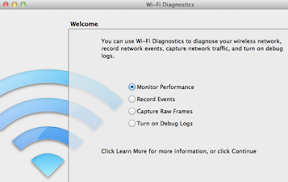
Ok this one is for geeks and support people and it is pretty buried in the Operating System and it isn’t clear other than visiting the CoreServices System Folder I am not sure how to open this application yet. For those daring souls that like to dig into the OS and play with this new feature it is located under /Library/System/Core Services/Wi-Fi Diagnostics. A user can monitor the performance of the computers on the wi-fi network, Record Events, perform a raw packet capture, or turn on debugging information. I think this has been included but either isn’t ready for primetime yet or is automatically launched when a particular problem occurs that I haven’t encountered yet.
ScreenShot2011-07-31at4.02.51PM-2011-07-31-19-00.png

Programs resuming from their last state

This can be a mixed bag for some users. You don’t want to be visiting a client and open Keynote to another clients presentation. So the best thing a user can do is remember to close files when you are done with them to prevent potentially embarrassing situations from arising. That being said I do like the feature in general. As we all know sometimes Safari starts using up a lot of memory or running slow and needs to be restarted. If you leave you tabs open but close Safari when you reopen it the tabs will all reload just the way it was and take up less memory and improved performance. So no need to go back and reopen the dozen tabs I had open again.

Last week while being out and about I was using my computer and put it to sleep. When I opened it up again I was presented with my login and password screen. Upon entering my credentials all of my apps reopened and resumed where they were when I put the computer to sleep and informed me the Mac had experienced a crash and would like to send diagnostic information to Apple. Other than having to login and getting this dialog box I had not even noticed that the computer had an issue and I was able to resume working right where I left off quickly.

Versions
Icon_Versions_07.08.11-2011-07-31-19-00.png
To date most of the apps I spend my greatest about of time in do not support Versions so I haven’t had much time to work with it yet. While Versions doesn’t totally rely on Time Machine it does seem to integrate with it to display data from documents older than the two weeks defaulted before the document locks. As more applications start to utilize versions I think this will become a huge feature in the future.

Visual Tweaks

Finder got a few nice visual tweaks like hiding the scroll bars when they are not in use. This is great for freeing up more space and if you want to see the scroll bar for a moment to get a feeling for where you are in a document just touch two fingers to the trackpad and move slightly to see where you are. Also with the loss of scroll bars the window moves resize button has gone away at the bottom of the screen. Now users can just grab any edge to resize a window and by holding the option key can resize opposite sides of a window or by grabbing the corner of the window the entire window.

Window graphics look more refined and the drop shadows around windows seem a little longer giving the desktop more of a sense of depth. It just makes the Windows environment feel a little more polished. Grabbing multiple files now adds a badge to show a user how many files they have grabbed so they know they got the right number of files. Finally when moving a file from one location to another the icon morphs into the shape of the view on the screen. Dragging from icon to list causes the icon to morph when it is over the destination window. It is not particularly useful but does make the OS feel a little more thought out and polished.

New Voices

With Lion users now get additional choices in natural sounding voices. These voices it is speculated came from a deal between Apple and Nuance Technologies. The voices now include many foreign languages and a variety of accents. To access these open the System Preferences, click speech, click text to speech, and under the voice choose customize. These additional voices are downloaded from the Internet and installed as a user requests them.

AirDrop

Icon_AirDrop_07.08.11-2011-07-31-19-00.pngAirDrop there isn’t too much to say about it, it just works. It requires zero configuration and it is very secure. The only downside is you have to be on late 2008 or newer Mac hardware that takes advantage of Wi-Fi Cards that can support an Ad-Hoc and Infrastructure network at the same time. AirDrop is off until the user clicks on it in Finder then it locates other people with AirDrop on in the immediate area. They are represented by an icon with their login picture. If a user wishes to send a file just drag and drop it to the recipients picture and it asks the user to confirm they wish to send the file. Then on the recipients computer a dialog appears telling the user the sender wishes to send you a file do you wish to accept the file. If the recipient clicks yes then the file is transferred over an encrypted connection. The process couldn’t be any simpler.

So all in all Lion is a pretty major upgrade for users despite the $29.00 price tag. As long as you don’t have PowerPC apps you still need there is no reason not to upgrade to the latest version. It doesn’t feel any faster than Snow Leopard but it does give the end user quiet a few new features and ways to help save their work and alter their work flow to make them more efficient. It is a nice upgrade and fun to use.

This is also the first major OS release to be available by download only and there was a lot of hoopla over it when this was announced. My computers took about 20 minutes each to download the data and Apple stores have been letting people who have slow Internet drop in and use theirs. It was announced last week that a USB drive will be made available in August with the installer for $69.00 US for the bandwidth impaired. New Macbook Airs and MacMini’s come with a method to re-download and install Lion from the Firmware if a blank drive is installed in the machine and eventually this feature will make it across the complete line.

The future has arrived our computers have gotten smarter, easier to use, and our OS’s will be downloaded.

Thursday, May 19, 2011

Malware on the Mac

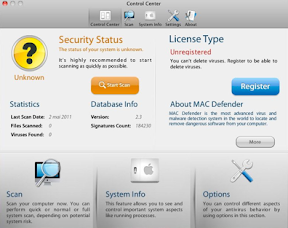
This week MacRumors reported the AppleCare hotline which normally has about 15 minutes between support calls now has a constant flow of calls coming in. A full 50% of these calls are because of a piece of Malware people have started installing called MacDefender. There is also Mac Protector and free iWork and Adobe Creative Suites floating around on the Internet that are really Malware. I won’t say the honey moon is over and we as Mac users really need to be particularly concerned about Malware and viruses. After all we are not PC users and our computers still can’t be infected by just going to a website or popping in a CD.

These Malware programs are either presented on a website or via an unsolicited email. I even got an email the other day structured to look just like something Apple would send and even took me to a website that looked very much like an Apple website. Except it wasn’t it. It was selling all kinds of fake or pirated software well below retail and most of it directed at PC users. The dead giveaway is Apple would never send an email from live.com (Domain owned by Microsoft and provides free email services).

So today I am going to give my readers a couple of tips to be safe when surfing the web and installing software. Plus I am going to include a quick step by step tutorial on how to remove the malware if you have already installed it on your computer. First, a quick synopsis of what is malware. These malware programs do nothing but tell the user they have a virus and if you buy the program it will remove this virus. Since there are no viruses in the wild on the Mac it is a fairly useless program. All it likely does is stop hounding you to buy it. However the people who wrote these programs don’t just want the $20.00 or so dollars for you to “buy” the software but then they have your credit card information and can sell that to the highest bidder online. It is about identity theft and credit card fraud. So your best bet is to just remove the program yourself and only install software from known and trusted software sources.

Safety Tips

1.) If you are running OS X 10.6.6 purchase your software from the App Store. It has been vetted by Apple and approved. It is the safest way to get software and you don’t have to worry about finding license keys if you have to reinstall and you can install software on each computer you own.

2.) Do not install software on your computer that you didn’t seek out yourself or you were not referred to by someone you trust. If you get an email saying get this great software cheap or you get something on Facebook or Twitter don’t be too quick to install it. Sometimes there are great deals like MacHeist and some others that put together bundles. Just be cautious and make sure the message came from someone you trust.

3.) When in doubt don’t install it. Do a Google search and find out more about it from trusted websites. You can even email me here at the blog and I will check it out and let you know if something is safe.

How to Remove Mac Defender / Mac Protect and other Malware

If you see the following screen as an example. You should not pay anything but follow these steps below to remove the malware from your computer.

4C92FAA4-7E36-4705-8A4A-159C70A0B0B1-2011-05-19-12-54.png
Should you install the software and need to remove it follow these steps.

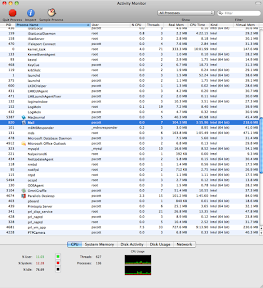
1.) Open Activity Monitor and locate the program running and select it. Under Process Name it will have the name of the malware. Click on it and then click the Quit Process

Screenshot2011-05-19at1.17.34PM-2011-05-19-12-54.png

2.) Go online and download an app removal program from the internet. There are three I can recommend and the links to them are below.

        App Zapper http://appzapper.com/ available for $12.95
        App Cleaner http://www.freemacsoft.net/AppCleaner/ available for free although donations are accepted via the website. If you do use this please help support the                                                                                          developer.
        App Delete http://www.reggieashworth.com/appdelete avaiable for $7.99
        Hazel http://www.noodlesoft.com/hazel.php available for $21.95 Hazel, does much more than just help clean up apps.

All four of these apps I have tried and I have checked out these links so they are safe for installation.

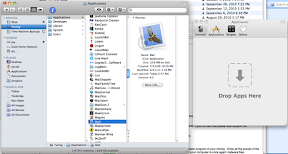
3.) Find the MacProtect or MacDefender in the Applications folder of your Mac. Drag the Application to the running App Delete program of your choice. Once all the pieces of the program have been found just press the delete button your App Delete utility. Once it is deleted empty your trash and your computer is once again malware free.
Screenshot2011-05-19at3.20.43PM-2011-05-19-12-54.png


App Cleaner is the app I have been choosing to remove this malware from the peoples machines I have tested this procedure on. So far all the feedback has been good and everyone indicated it has been a simple fix. If you have issues let me know through the blog or via email and I will modify the directions as needed and try and help users solve their problems. After all that is what the Mac community is all about helping one another.

Remember be safe when surfing, always exercise caution and make sure you understand what you are installing when anything asks for your admin password. If you or a family member are running as a Standard User the malware should not be able to install unless your provide an admin level password.

Thursday, February 17, 2011

Hulu Plus, Netflix, and iTunes replacement for cable?

After a few months of testing I can say I have a pretty good feel for Hulu Plus. First the application runs fine on the Mac, not quiet as nicely as Netflix with its Silverlight technology and ability to run in full screen on an extra monitor while you work on other monitors, but it runs fine if you are just looking to watch TV on your Mac. The iPad and iPhone applications are fantastic for watching TV shows while you are mobile. The picture quality is a little lower on 3G but still watchable.

For comparison I tried Hulu on the Mac, iPad, iPhone, and PS3. The PS3 was just a bad experience. Every time a software update comes out Hulu gets stuck on the login and will not open completely or close to allow the user to update without holding down the power key and rebooting the PS3.

On the iPad and iPhone It is a completely different experience. Just tap the app and you are ready to watch TV. The search is a little non-intuitive and new full episode availability is still limited. The older series library is growing constantly allowing viewers to revisit old favorites or even discover old series they missed for the first time Recently some content has starred showing up as web only not allowing it to be viewed by anything but a Mac or PC. Since there is a $7.99 a month subscription fee i should be able to watch any content on any device I own. That has been a problem for several shows I watch.

At $7.99 a month for Hulu it isn't a bad deal if you want some TV on demand or your DVR missed a show, but I am not throwing out my satellite TV just yet.

Netflix is another TV / movie on demand service with a large selection of movies and a $7.99 a month streaming only option. The system recommends movies based on what you watch and how you rate movies. It is easy to discover movies you may never have heard of before. Or if you happen to be at home and in the mood to watch a movie you can just flip through and find something without having to go out of the house or buy a movie from the cable or satellite company.

Netflix on the Apple TV, iPad, and iPhone are great experiences. Again on the PS3 the User Interface changes every time you sign in making it a little confusing to use. I keep hearing that Netflix is trying to find the right UI and getting feed back from customers on the three leading ones. My recommendation is let us choose which one we want to use and don’t assign a random one.

While Hulu is focused on TV Netflix is definitely focused on feature length movies and a few older TV series on DVD.

Netflix will also for an extra dollar a month will mail DVD's to you. The entire catalog isn't available for streaming yet but, Netflix CEO Reed Hastings says they plan to have the entire Netflix collection online in the next year and sees an end to mailing DVD's in the not to distant future.

iTunes has come a long way since it’s early days of just syncing the iPod. Adding a music store, a movie store, and a TV shows in addition to the app store. iTunes became one stop shopping for programs and content. In the early days we could only purchase content which was a little expensive for just watching a movie. Later they added rentals and HD content. Now with the Apple TV2 renting movies is simple and competitively priced with cable and satellite. The 720p HD stream looks great and it is most of all totally convenient. The only thing Apple is missing now is a subscription service to let you watch all the movies and TV’s you want for a low monthly fee. Maybe a few content deals from networks and we could see competition with cable and satellite. I don’t think that is likely to happen since most of the networks own cable companies as well. It would be good for consumers as it gives us choice. What is more likely and will be slow coming is independent content creators will start making their own deals and getting themselves into iTunes, Hulu, and Netflix and start making the big production companies and cable networks less relevant. Much like the Internet has given everyone a voice to share content they have created we could see the same thing come to streaming services in the future. This would give consumers more choices and more diverse content, give advertisers a less expensive medium to get the word out about their products and give us access to content anywhere, anytime, anyplace.

For the providers of content it is time to get on board with streaming from iTunes, Netflix, Hulu, or even your own app that is available on multiple platforms. Just last season my DVR had an issue and stopped recording a series I watch. I didn’t notice until the end of the season and missed several shows. Not wanting to get lost in the story I stopped watching and started looking for the season once it ended. It isn’t available in any streaming format and is coming out on DVD but really not worth me going out of my way to get it and to buy it. So the network just lost a regular viewer due to a technical glitch and their inability to make the show easily available for me to catch up and resume watching on my DVR.

So I am not quiet ready to give up satellite TV yet but Netflix, Hulu, and network TV apps that deliver content to any digital device might make a compelling argument for leaving cable behind. Particularly for road warriors who are on the road frequently and don't always get a chance to watch their favorite shows.

Saturday, October 30, 2010

Apple's Back To The Mac Presentation

Business

Apple's CFO Peter Openheimer reported that Apple had it's 18th record breaking quarter in a row. With the sales of iPad, iPhone, and Mac they posted earnings of 20 billion. The Mac is still 30% of that business and even if Apple were to separate out the Mac from their other businesses the Mac business would still be in the Fortune 500. He immediately said they would not do such a thing. Apple, as a company, has had a string of hits and have gone from a company 10 years ago where Michael Dell stated Apple should close their doors and give the money back to the share holders to the second largest US Company in terms of market cap, the fourth largest manufacturer of cell phones displacing RIM for the fourth place slot, even beating Microsoft in fourth quarter earnings this week.

Half of the people buying Macs are first time buyers and are buying Macs because they like the iPhone and the iPad. From the rest of us long time members of the Mac community; welcome. I suspect Apple's next bold move will be s shot at moving into the enterprise where currently 60% of Fortune 100 companies are exploring how they can use the iPad in their business. Apple has beefed up it's business consulting staff so it is only a matter of time before Apple comes knocking at Microsoft's last major strong hold.

iLife

Recently Apple held an event on the the Apple Campus in Cupertino where they gave us a sneak peak at an updated OS, iLife, new hardware and software and below are just some of my impressions of these.
Screenshot2010-10-30at3.25.01PM-2010-10-30-15-16.png

iLife 11 has some nice new features but it isn't the ground breaking app I was hoping to see. We still have nothing new for producing epubs and the next generation of ebook. They didn't even seem to touch iWeb or iDVD. In fact iPhoto just got a full screen mode, a couple of really cool new slide shows and some nice new book, card, and custom calendar options along with a revamped store to build and buy them in. GarageBand and iMovie seemed to get all the attention on this version. It is nice they got updated but how many people use iMovie and GarageBand on a daily basis? One interesting feature in iMovie is the ability to upload to MobileMe, Facebook, YouTube, Vimeo or CNN iReport right from the application. This could cause another explosion of user generated content like adding the video capabilities to the iPhone. My question is when will the iMovie iPhone application get the same treatment. News reports could be shot and edited on scene and uploaded to the news bureau instantly. The new iLife is also Snow Leopard only so if you still own a G5 or haven't moved up to Snow Leopard for some reason you have to do that first.

While Apple has made a huge push to converting their entire platform to 64 bit, iLife is still being shipped as a 32 bit apps and can't really take full advantage of all the RAM our computers have to offer now. The apps are fast don't get me wrong but we wouldn't be Apple fans if we didn't want more.

I think most of us old time Mac fans are still looking for the
Knowledge Navigator from 1985 that was envisioned years ago and a video was created to show what computing would be like in the future.

FaceTime

Apple has also released a beta version of FaceTime on the Mac as a standalone application. First I think it is a standalone application so that it can be ported to Windows when it is finished on the Mac. The application is still in beta no release date has been officially given yet. I have tested placing calls from the Mac to iPhones and have received calls as well. FaceTime isn’t exactly feature rich yet and has a way to go on deciding where to send a call. If I am at my computer and someone calls my iPhone I would rather the call go there or give me an option to transfer the call between devices.


Screenshot2010-10-30at3.22.23PM-2010-10-30-15-16.pngJobs did promise when the iPhone 4 was introduced that millions of devices would have FaceTime by the end of the year and he was right. I am using FaceTime a couple of times a week to talk to people. Once you open FaceTime you can register one or more email addresses for people to call you on. FaceTime can ring to your computer even when the application is closed. When a call comes in FaceTime opens and displays who is calling along with a preview of what the caller will see if you answer.

FaceTime still needs some smoothing over and some additional features but the minimal interface and video quality are both quiet good. I would like to have an announcement of who is calling instead of just a ring and I would like to see FaceTime work over 3G networks so I can make or receive FaceTime calls anywhere, anytime. I would also like to transfer a call in real time between my iPhone, MacBook Pro, or in the future iPad when it gets a forward facing camera.

OS X Lion

OS X Lion was a bit sketchy on details and Apple did not announce any ground breaking changes. We are now just getting more support for gestures and some of the things Apple learned about in iOS is being brought back to the Mac.

First Mission Control is integrating expose, dashboard, and spaces into one easy to use gesture based system. I think while this is mostly UI polish it has the potential to improve my day to day work flow and reduce some of the window clutter that can distract me and keep me from completing tasks. With a click of a button I can make app full screen to work undistracted. However with a swipe gesture I can jump to another full screen app or back to my windowed desktop. Another swipe and all my windowed apps group by type and group with each other so I can look at them quickly and easily. Another gesture and my widgets slide in at the ready.

Screenshot2010-10-30at3.24.25PM-2010-10-30-15-16.pngApple added expose in 10.3 to deal with Window clutter and dashboard in 10.4 to give us access to small specialized Programs called widgets. I see these features hardly used with a lot of Mac users I work with and I believe this is Apple's attempt to move these apps into the main stream.

Next up is LaunchPad. It looks like the home screen on the iPad or iPhone. Which begs the question do we need another app launcher? To date we have the dock to place apps you use all the time, the finder to locate and run rarely used apps, or my personal favorite Spotlight. Just type a shortcut and the first few letters of the app name and press enter. Now we are getting another new gesture and LaunchPad flies in and we can interact with the apps the same way we do on the iPad. This could help reduce some clutter in the dock and organize apps a bit better. I just would like to see them come up with an easier method to rediscover an app I already have. Many times someone has asked me about an app or I have needed to perform a task and just couldn't remember the name of the app I wanted. We almost need an app to keep track of our apps, particularly the ones we use infrequently.

The next item up and the one that will and is creating the most up roar in the Apple community is the Mac App Store coming to Snow Leopard sometime in January. Just early this year it was reported that the next version of OS X would have an app store and only approved apps would be allowed on the new OS. To which in a short Steve Jobs email he replied no. Now two questions were asked, and only one answer given. Now at the Back To The Mac event we get a cleared picture. Yes, we will have an app store and no users will not be restricted to loading only software purchased from there. So geeks breath a sigh of relief, nothing is changing for you except a reduction in confused calls from family and friends on how to install a piece of software. Now they can just open the app store click on an app and find it in the LaunchPad ready to go. No more mounting disk images and running package installers or dragging to the Applications folder. Unless of course that us the only way the app is offered.

Also important to users, no more tracking serial numbers, locating DVD's or hours of reloading software should you need to reinstall. Making it as simple to reset your desktop as your iPhone or iPad is today. With cloud based backup solutions we can see a day when you could reformat your computer auto re download your apps and pull your data back from the cloud.

This is totally optional for developers and is going to be huge for small developers. Access to a store where all of your potential customers visit. Able to sell at lower prices because piracy has been greatly reduced. No dealing with software keys to lock your application. This can be a biggest thing to happen to small developers ever. As a new developer I am looking forward to publishing on the Mac App Store it just seems like a simple choice.


One more thing...
Screenshot2010-10-30at3.20.41PM-2010-10-30-15-16.pngThe MacBook Air looks awesome. I use my MacBook Pro for coding and website design and my iPad for writing, surfing, and email I don't expect to run out and get an AIr but I do see what the fuss is about. It is small, light, ultra portable, and fast enough for what 95% of users want to do. It looks good for casual games, surfing the web, and light content creation. The flash based storage isn't huge but with large USB drives and cloud storage options popping up all the time the limited Flash based hard drive 64-256 GB isn't really an issue. If I did't already own a 17" MacBook Pro I would consider the Air for a first Mac. The Air seems to be Apple's foray into the Premium net book market. With a $999-$1,599 price point it isn't cheaper than other net books but it is far more capable. Intel Core 2 Duo CPU, 2 Gigs of RAM and large flash storage makes it a fast and small machine. The MacBook Air will be a must have for the back to school crowd and people with light to moderate computing needs. The lack of optical drive option did prompt Apple to include a small USB key for software restore. I hope to see this become the standard for software restore on all computers. It is more convenient than disks just pop it into the USB port and reboot.

Overall it was a good presentation from Job’s and team, I do expect we will hear more about Lion in the coming months leading up to it's summer release. I hope we see quiet a few more new features to make our OS more ready for the enterprise, more user friendly, and more powerful than ever before. Apple is now 10% of the PC market and 20% if you count the iPad as a PC. That growth is only going to continue upwards for the foreseeable future. It is really an exciting time to be a Mac fan and even more exciting to be a Mac developer.

If you are one of those who are new to the Mac again; welcome! To get the most from your Mac and iOS devices seek out a Mac User Group in your community. Other Mac users are always happy to share information and teach one another about our favorite software.

Sunday, September 26, 2010

The Importance of User Groups

shapeimage_7-2010-09-26-19-22.pngIn August I was elected President of the Las Vegas Mac Users Group (www.lvmug.com). It is an honor to be elected and to have the opportunity to volunteer to help other Mac users become more familiar with their computers and facilitate their exploration of the platform. Computer User Groups have been around since the 70’s when hobbyist computer geeks assembled their Altair’s and other kit computers. The Homebrew Computer club in Northern California was a great example of where enthusiasts gathered to learn more about computers and to show off what they had built. Homebrew was where Steve Wozniak even showed off his first Apple I computer. Homebrew was also where Dan Bricklin first showed off his creation VisiCalc for the Apple II.

This was of course in the days before we all had Internet access in our homes and even on our phones where we can look up any information anytime or anywhere. So are User Groups still relevant? Of course they are still relevant. There are many things that all computer users can still learn from each other. I have found spending time with Users Groups people ask questions I may never have thought of, or show off a piece of software they found that I have never heard of that might fit nicely into my daily work flow. Besides learning new and interesting things it also gives me a chance to socialize with other Mac Users. It is fun to spend time with people who are as passionate about their computers as I am.

For the late 90’s in Apple dark days when things weren’t going well Apple relied on the Mac Users Groups and Apple faithful to keep them going and keep them going the Users Groups did. Now in the 2000s Apple is hugely successful and moved from just selling to computers to an array of consumer electronics and bringing more people back to Apple we are seeing a resurgence of the Users Groups again although this time with a slightly different focus. Todays Mac Users Groups tend to be less of the geeks and more regular users helping each other out. Everyday computer users meet in classrooms, restaurants, libraries, and other spaces to ask each other questions and share tips and tricks with one another. Of course there are some hard core geeks in every group like myself who love to answer questions and share with the group and if we don’t know an answer at least know where we can find the answer.

Las Vegas is home to three Mac Users Groups and with a little searching it is fairly easy to find a Mac Users Group in most towns or at least close to smaller towns all over the country. There is even a group for people who run the Users Groups http://www.mugcenter.com/ where they have resources for finding guest speakers and companies willing to offer discounts to User Group Members as a way to encourage people to become members of User Groups. There is also an advisory board for User Group leaders http://appleusergroupresources.com/ to help find speakers and connect groups with software companies to offer discounts to members and software demos.

So the Mac User Groups today are really more open and accessible to the average user today than they were twenty years ago. It provides users a space to ask questions and learn more about their computers and find new ways to use them. The thing that truly sets the User Group apart from the Internet is the camaraderie and it creates an environment where you may learn things that you didn’t even know to ask about.

So the next time you have a question about your Mac instead of spending hours Googling and reading and Googling again, try searching for your local Mac User Group and drop in and visit. You may make new friends, get your questions answered, learn something you haven’t even thought to ask. But you will certainly have a good time. Our community is still smaller than the Windows Market and Mac Users stick together and are always willing to share what they know with anyone interested and if we don’t have the answer we love going on the journey to find that answer together.

To find a Mac User Group in your area visit http://www.apple.com/usergroups/ and go to Find A Group or go to http://www.mugcenter.com/mug-event-calendar/ for a calendar of events for Mac User Groups across the country and visit one near you.

Monday, September 6, 2010

iPods, iOS, and AppleTV Oh My!

Apple-Media_Event_September_2010-2010-09-6-18-30-2010-09-6-18-30.jpgThis past Wednesday Apple made their September music announcement at the Yerba Buena Center in San Francisco. In typical Steve Jobs fashion this presentation was a three act play. First getting, the numbers out of the way quickly, he announced Apple retail is doing well with 300 stores worldwide. The second stores in China and France just opened to huge fanfare as well as a new store in London. Ten countries now have Apple Stores and soon to be eleven with a new store opening in Spain. Some days these Apple Stores are seeing over 1 million visitors in a single day. Over 80,000 one to one classes are being held every week and over half of the new Mac buyers are first time buyers.
The First Act of Steve’s three act play was to discuss iOS. Over 120 million iOS devices have been shipped since the iPhone was introduced in 2006. Currently Apple is activating 230,000 iOS devices per day. These devices have downloaded 6.5 billion apps from the app store, about 200 apps per second. This week Apple will be rolling out iOS 4.1 for iPhone and iPodTouch. The new version fixes issues with the proximity sensors solving problems users have had when holding the phone up to their face. This release is also correcting issues with Bluetooth connectivity. Also some enhancements have been included to solve some iPhone 3G performance problems. I have been running this for the last week on my iPhone and the Proximity Sensor is fixed. I haven’t noticed any issues with my bluetooth so I will have to talk to some other people on that. I have heard online that 3G performance improved a little bit.
Some new features that have been added to iOS 4.1 are HDR (High Dynamic Resolution) photos. This is the first camera phone to support this feature. Only a few pocket cameras have even started including this technology. When you shoot a photograph where you have sky and shadow a normal digital photo will blow out the lighter part of image and the dark parts will just show as black. With HDR the camera will take three pictures quickly one with the exposure it thinks is correct and one an F-Stop higher, and another an F-Stop lower. Then the software will blend the three images to create a single photo that displays all three images in a balanced way revealing details that couldn’t be seen before. This is an exciting new technology and one that, in my testing, I have been impressed with.
HDR doesn’t work with action shots or where the scene is changing rapidly and parts of the image that are in motion while photos are being taken tend to blur. So if you are taking pictures of moving people or objects turn HDR off. If you are shooting a still scene or one with little motion by all means use it.
Apple has no added the ability to upload HD videos over WiFi so now you can shoot, edit, and upload video to You Tube right from your iPhone. TV Show rentals have also been added to the iTunes Store on the phone. So if you are heading out for a flight, or to catch a train and you missed last nights episode of Eureka you can rent it right on your phone and watch it on your trip.
We also now have Game Center, a social gaming platform for the iPhone. Currently the iPod Touch has over 50% of the portable gaming market and this coupled with the Unreal Game engine coming to the iPhone this winter is just going to grow that gap even further. Now people can challenge their friends and see what they are playing online through the Game Center app or in any Game Center enabled game. Game Center is on the iPhone, iPod Touch, and later this fall the iPad.
iOS 4.1 for the iPhone and iPodTouch will be available later this week.
Apple also gave us a sneak peak at iOS 4.2 coming in November. This will bring multi-tasking, Game Center, Folders, HDR photos, message threads, unified inbox, and wireless printing to the iOS. I have head other people commenting this must mean that iPad is getting a camera. While I have no doubt Apple will someday add a camera to the iPad I wouldn’t look for it before next April. I believe iOS 4.2 just brings iOS for the iPhone and iPad together so they can start releasing one OS for both. iOS 4.2 will give us printing from our iPad and iPhones, so if you wish to print a document just click on Print, and tap the Bonjour printer in range you wish to print your document on.
iOS 4.2 is also going to bring us a new technology called Airplay. Airplay will allow us to stream movies, TV shows, or music from our iOS device to an Apple TV but more about that a little later.
In Steve’s second act he announced their have been over 275 million iPods sold and an entirely new line of iPods are being introduced this week. The shuffle got its click wheel back and kept voice over and its clip to make it wearable with 15 hours of battery life and comes in five colors for $49.00. He never said in the keynote but I assume it is still 1 Gig of storage. The iPod Nano gets a total facelift making it nearly half the size and weight. Apple did away with the click wheel and replaced it with a small multi-touch display and the new nano appears to be running at least a stripped down iOS. It makes me wonder if the iPod apps will reappear at some point for the Nano. The Nano also dropped its camera and video recording capabilities in favor of the much smaller size. Also included in the new Nano is an FM Radio, pedometer, Nike +, and a battery that boasts 24 hours of music play back. It doesn’t appear they included an accelerometer either to determine which direction is up as the screen doesn’t rotate on its own. It requires the user to make a multi touch twist motion on the screen to set the orientation. The new Nano comes in an 8 gig form factor for $149 and 16 gig for $179.
Last in the line up is the new iPod Touch. The iPhone without a contract. iPod Touch is being updated to include a new retina display just like the iPhone. The unit is thinner has Apple latest A4 chip in it. A 3 axis gyro was added for more accurate game play and a front facing camera for FaceTime video conferencing. Also an HD camera on the other side for recording and uploading HD video. Now iPod Touch and iPhone users can call each other using FaceTime over a WiFi network. The new touches will come in 8 gig for $229, 32 gig for $299, and 64 gig for $399.
Also in the area of music Steve announced iTunes 10. First thing I noticed that is missing from iTunes 10 besides color is it still isn’t 64 bit for the Mac, and Apple has not given us a brilliant Apple like way of managing the content on our devices. This was the one thing that was and is still sorely lacking in iTunes. What we did get is apparently faster syncing with our devices. My iPad takes half the time to sync up as before. The iPhone has always been fairly quick but it even got faster. Since digital downloads are poised to overtake CD sales this year the CD has been dropped from the logo and now we have a music note on a blue background. It looks nice in the dock but makes the other icons around it start to look a little dated.
The new hybrid view is a great way to look at your music and see album art for albums where you have more than five songs and it takes up no more space. The view is nice and I will probably start using it as my default view.
Also new to iTunes Apple’s foray into Social Networking with Ping. If you want to follow me on Ping and see what I am listening to just click here. It is like Twitter or Facebook but dedicated to music. This may be Apples way of sticking their toe into the Social Networking water. If the music social networking goes well perhaps Apple will expand ping to be a direct competitor to Facebook.
And as a third act Steve talked about Apple’s hobby. AppleTV is now smaller, cheaper, and easier to manage. AppleTV was introduced in 2006 and was not a big hit. It wasn’t what the main stream user was looking for. The average user doesn’t want to think about syncing their device. So the new Apple TV doesn’t have any storage on board and no way to buy new movies or TV shows. Currently the Apple TV is rental only. $0.99 for HD TV shows and $4.99 for HD first run movies and the price goes down for movies as time goes on. Also Apple TV can stream content from any computer with iTunes on the network. It is equipped with HDMI, Ethernet and 802.11n wireless and comes with an aluminum Apple remote control. Streaming of Netflix and YouTube has also been added to the new AppleTV. Also with the new Airplay feature coming in iOS 4.2 you will be able to stream content from your iPhone or iPad to your Apple TV device at the touch of a button. This still gives users who want to buy a movie or TV show the ability to buy on the iPad and download it, then watch on the Apple TV. The one question I have is will Quicktime X see an Airplay feature added?
I have already placed my pre-order so I will have an in depth look at the new Apple TV when it arrives.
Many people were expecting a TV revolution this week that didn’t seem to come. There was no mention of the North Carolina datacenter and what it will be used for later this year and we still haven’t heard when FaceTime will be coming to iChat. There was no mention of apps on the AppleTV or a streaming TV show service. I would love to download apps for the channels I watch and just pay for the channels I like instead of everything. Apple can revolutionize TV just like they did with music and multi-touch applications on smart phones. But they apparently have decided to a take a slow steady approach.


Sunday, July 11, 2010

Blogging on the Mac

Blogging on the Mac can be as simple or as complex as you choose it to be. Blogging can be a lot of fun and a truly rewarding experience. The first thing you have to decide is what you want to blog about. Pick something that is interesting to you and that you can write about on a regular basis. It took me some time to learn this important tidbit. Regular blogging is very important to getting repeat visitors to your site. My first six months of blogging I could have lunch with all of my readers because I wasn’t writing on a regular basis. As soon as I set a deadline for myself and started sticking to it I saw an immediate increase in traffic.
I started off by purchasing a domain name through godaddy.com. www.macguy.info serves as my home page and blog.macguy.info is redirected to paulmacguyscott.blogspot.com where my blog is hosted. Next step was to signup for blogger using my gmail account. Once I had the blog site setup and configured the way I wanted it to look I setup blog.macguy.info to redirect to my blog page.
Next to see what kind of traffic I am getting I went to Analytics.google.com and setup an analytics account so I can see how many hits a day I am getting, how my visitors are finding me and what country they are from. This is just of interest to me and it is only very general information but it gives me an idea of who comes to my site and sometimes what pages they are visiting.
Really the best source of feedback is comments on the blog itself, emails, or tweets I get from my readers. Some of them even give me ideas for future posts. As a part of regular posting process I started planning what topics I am going to write on ahead of time. Currently I build my schedule about two months out. I plan topics around certain dates that might be relevant. A review of study software in August right before students go back to school, or a look back on technology when a company hits a mile stone anniversary. Of course sometimes I shuffle things around if a big story breaks or an important issue comes up that needs to be covered.
Planning these ahead of time allows me to start researching and writing ahead of time as well. I can start putting my notes together or interesting bits I think of I want to write in file so i can keep track of it when I am ready to write it. I am also trying to write several articles a week and hold them until it is time to publish so taking a vacation or being busy with my day job doesn’t throw me off my scheduled posts.
Another option when news breaks is to just add an extra story for the week to my blog. Since this is all digital I don’t have to worry about a real deadline or how much space I take up. I can always add a bonus story if I like or just move the schedule around. Currently I plan about two months in advance what I plan to write so currently I just move stories around, eventually I might add extra stories to the blog as I have more time to write.
After the first few months of writing my blog in the web based editor on blogger I decided I wanted a better way to post. So I started looking at different programs that might help me focus on my writing and post my stories. I settled on MacJournal from http://marinersoftware.com/sitepage.php?page=85. It is a nice software priced at $39.95 and versatile. In addition to being linkable to several blogging platforms like Blogger, Word Press, Type Pad, and Live Journal you can create private encrypted journals to share your personal thoughts and writings for just yourself or perhaps a memoir for the future.
MacJournal lets me keep a local copy of all of my blog entries so I have a copy on blogger and a copy on my laptop that is also backed up to Time Machine and Mobile Me. For those keeping score that is four copies of my writing in three different locations on two different kinds of media. In a future post I will do a piece on backing up in depth.
MacJournal also allows you to add your tags and set publishing dates right in the Inspector. This saves time when uploading your blog post. You configure your site settings under share and when it comes time to post your blog you just click share, Send To “Name of your blog here” and it uploads and shows you the page in Safari once it is loaded. The only weak point I have seen with MacJournal so far has been it can’t upload images to Blogger. Any images I add to my blog I have to do on the web after I have uploaded the story. I hope this is something that can be fixed in a future revision. Once I have uploaded the images I can re download the story into blogger and update my local copy and it does download the images just fine although it doesn’t hold the formatting as it is displayed on the web.
If I am traveling and have a need to post in my blog I use BlogPress on my iPad and iPhone. http://blogpress.coollittlethings.com/ This is a great piece of software that allows me to blog while away form home. In April i wrote a story reviewing the iPad while on a cross country flight. Since the plane had WiFi I was able to write my story and post it right from plane. Writing a 2,000 word review of the iPad on the iPad was a good experience and one that showed me short of software development I didn’t really need to carry my laptop with me anymore if I was only going a few days. Now with Remote Access software I hardly ever have to carry my laptop anymore unless I just want to for some reason or I need to sync my iPad with my computer. BlogPress syncs right up with blogger and was the first iPad Blogging tool available on the app store. I just open it up and start typing. I even can add images right to blogger from the iPad. At the time there was on editing software for photos on the iPad so I wasn’t able to rotate the image the way I wanted the screen shot to look but it worked in a pinch.
If I don’t have my iPad with me but I am carrying my iPhone BlogPress runs on the iPhone as well. Now I can take pictures and write a story right in the field. With a Bluetooth keyboard it is easy to write from the iPhone. So now I can take my writing with me wherever I go. BlogPress will even let you save movies to your YouTube Account and link them to your blog. So no we can do pictures, movies, and text all live from wherever we are.
I blog because I like to write and I like to share information with people. I get a great deal of satisfaction knowing people are reading what I write and getting something out of it. For that I want to thank each and every one of you for visiting my blog and enjoying and learning from what I have written. Please keep the comments, tweets, emails, and Facebook posts coming. I couldn’t do what I do without you all.

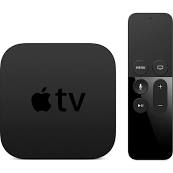
Apple TV

The more I use the new Apple TV the more I like it. The previous model was likable and easy to use but we had no options for live content. N...