Since the release of the iPad just over a month ago much has been said about the future of Flash. Apple and Adobe seem to be trading barbs back and forth almost daily in the media. In my opinion Flash is an old technology that served a purpose at the time and modern developers have gotten a little lazy and over use the tool.
When Apple first introduced the iPad and said it wouldn’t support flash there was an immediate uproar. Critics attacked Apple saying you can’t have the whole web in your hand without Flash. Apple’s calm reply was we support HTML5 and that is the future. Flash is old, slow, buggy, causes the browser to crash frequently, creates too much load on the processors and drains batteries too quickly creating a bad experience for the users.
To that I say Apple has a good point. I did have frequent crashes and slowness in my Firefox browser on my PC at work and in the Safari Browser on my Mac at home. When the debate first started I decided to try an experiment. Could I live Flash free on my laptop browser? So I downloaded Click To Flash http://clicktoflash.com/ and installed it on both computers. The difference was night and day.
My browsers seemed to load faster, my CPU load was lower and best of all I wasn’t seeing the random browser crashes any more. Most of the sites I visit I couldn’t tell a difference with the exception of few ads loading. In place of flash content I just see a white box with the word Flash in it. If I choose to load the flash content I just right click and choose Load Flash. I can also white list an entire site where I want to use flash every time I visit. The White List feature I really don’t use, I haven’t found any sites with content compelling enough to turn it on.
When I visit You Tube using Click to flash I get different options. First I joined You Tubes HTML5 public beta. So many videos load using HTML5 and just play with no problem. The videos that are not available on HTML5 can be played back using H.264 through click to flash. The same technology that allows you to watch You Tube videos in the application on the iPhone and iPad.
In the month the iPad has been out and this argument has come to a head Steve Jobs released an Open Letter regarding Flash http://www.apple.com/hotnews/thoughts-on-flash/, and Dean Hachamovitch from Microsoft’s Internet Explorer group jumped in on Apple’s side of the argument http://blogs.msdn.com/ie/archive/2010/04/29/html5-video.aspx. Both companies agree H.264 Video and HTML5 is the future of the Internet.
Websites are rapidly jumping on the band wagon and making new sites that don’t use flash or at least alternatives to flash so that iPhone, iPad, and Click To Flash users like myself still get a great web experience without the cost to our processors, batteries, and system stability. Maybe we should start calling it the Flash Tax. Vimeo, You Tube, Zinga and others are already giving us HTML5 playback options that look as good or better than Flash and use a fraction of our computers CPU.
We still have some sites that are moving more slowly. Mostly restaurants that have menus online done in Flash. Dave Hamilton of The Mac Geek Gab http://www.macobserver.com/tmo/features/mac_geek_gab_free/ commented last week the lack of Flash was a huge limitation on the iPad. He was traveling with his family in DC and looking up restaurants on the iPad was a problem because most of the sites were in Flash. Of course most of the time if you are looking for a restaurant you are most likely to be on your iPhone, iPad, or Android mobile device. None of which provide support for Flash.
There are some hacks you can do on the Android to load a Flash player and Adobe has announced their player will be built into future releases of Android later this year, however a number of functions in Flash like Mouse Over don’t exist on a touch based device. So even if you have a Flash Player you still may not be able to access Flash content. So for mobile users even if we did have Flash and you could surf quick because it is going to kill your battery much faster and then leave you without a phone until you can recharge.
So sorry Adobe you didn’t do a good job growing your Flash technology your new beta version for the desktop http://labs.adobe.com/technologies/flashplayer10/gala/ that utilizes Graphic Hardware Acceleration is nice but I am afraid it is too little too late. The beta software does use less CPU resources on my computer and moves most of that load onto the idle graphics processor and it looks good but I can’t tell the difference between the latest flash and HTML5. Until I open the site on my iPad and I see a blue puzzle piece where the Flash content once was.
The Wall Street Journal Interview with Adobe CEO Shantanu Narayen http://online.wsj.com/video/adobe-and-apple-ceos-square-off/5C074A32-B7A3-47EC-9B53-E7A8A5A04E49.html just proves that Adobe has really lost touch with the rest of the world. Flash is ready to go the way of floppy disks, Parallel Ports, Serial Ports, and other technologies that were great in their day but the world has moved on to bigger, better, faster things. HTML5 and H.264 are the future of the web and I bet we see a huge shift this year away from Flash and onto the new standards being developed by Apple, Microsoft and others in the W3C consortium. Soon we will have access to any content, any time, any where, on any device we choose and that will be exciting.
Skyfire http://www.skyfire.com/ has announced they are releasing a browser for Android and submitted one to Apple that when the browser detects Flash content the flash content is sent to skyfire servers and converted to HTML5 and streamed back to the mobile device which will give mobile users access to Flash content without the flash actually having to be run on the mobile device. That will give users the best of both worlds, at least until Flash finally goes away.
Yes, I know the Google Phone application for my readers to call me on the bottom of my page is in Flash. As soon as Google offers me an HTML5 I will happily go Flash free on my site too.
Sunday, May 2, 2010


Friday, April 23, 2010
Can the iPad replace my laptop
On my trip to Washington last week I attempted to untether myself from my laptop and work solely on my iPad for four days to see if I really need my laptop while I travel.
First I found it hard to get a lot of work done while I was in coffee shops and on airplanes. Not because the iPad couldn't do it but because everyone wanted to see the iPad. So I did quiet a few impromptu demos in airports, airplanes, restaurants, offices, coffee shops and peoples homes. This device is definitely a hit and it fascinates everyone. I am sure my productivity will go up when more people have them and the iPad is as common place as the iPhone. This is truly a new category of device that has captured peoples imagination. That being said I enjoyed every minute of putting this in peoples hands and showing them what it can do. I have probably personally been responsible for a dozen and a half new iPad owners in few short weeks I have had it. You are most welcome Apple and keep the cool products coming.
Second if you spend most of your time working somewhere where free wifi is available the iPad is indispensable. If you find yourself somewhere with no wifi or where everyone passwords their wifi and you don't have access an Overdrive, Mifi, or some other 3G to Wifi technology the 3G iPad is a must. The iPad isn't nearly as much fun without Internet access.
Third on my trip I only had to get the laptop out twice. Once to do some work in Photoshop and PDF Pen Pro and once to print my boarding pass for the return trip home. The only other thing I missed is Hulu to keep up with my TV shows which is rumored to be coming soon.
So if Apple adds printing in iPhone OS 4, photo editing in iPhoto, and Smile On My Mac gives us PDF Pen Pro for the iPad and a lightweight Photoshop from Adobe the only thing I will need my laptop for is software development.
If you are a writer, news junkie, or just can't be without web access the iPad is ready for trips now. If you are a developer or multimedia content creator I wouldn't leave the laptop behind just yet.
I was able todo 99% of my work and watch most of my TV shows without the need for the laptop and the battery life is so good that as long as I charged it up when I went to bed at night I was fine for a full days work the next day. When I am home and using my laptop, desktop, and iPad I can recharge it every two or three days and still never run out of power.
The iPad is 99% of the way there on replacing net books and while not as powerful as my Macbook Pro, it did nearly everything I needed it to do for four days. I think with iPhone OS 4 that will bring us that last percent of the way there to make this a perfect travel companion.
I would call my four day travel experiment a success and next time I have a few days of travel I might just leave the laptop at home.
-- Post From My iPad
First I found it hard to get a lot of work done while I was in coffee shops and on airplanes. Not because the iPad couldn't do it but because everyone wanted to see the iPad. So I did quiet a few impromptu demos in airports, airplanes, restaurants, offices, coffee shops and peoples homes. This device is definitely a hit and it fascinates everyone. I am sure my productivity will go up when more people have them and the iPad is as common place as the iPhone. This is truly a new category of device that has captured peoples imagination. That being said I enjoyed every minute of putting this in peoples hands and showing them what it can do. I have probably personally been responsible for a dozen and a half new iPad owners in few short weeks I have had it. You are most welcome Apple and keep the cool products coming.
Second if you spend most of your time working somewhere where free wifi is available the iPad is indispensable. If you find yourself somewhere with no wifi or where everyone passwords their wifi and you don't have access an Overdrive, Mifi, or some other 3G to Wifi technology the 3G iPad is a must. The iPad isn't nearly as much fun without Internet access.
Third on my trip I only had to get the laptop out twice. Once to do some work in Photoshop and PDF Pen Pro and once to print my boarding pass for the return trip home. The only other thing I missed is Hulu to keep up with my TV shows which is rumored to be coming soon.
So if Apple adds printing in iPhone OS 4, photo editing in iPhoto, and Smile On My Mac gives us PDF Pen Pro for the iPad and a lightweight Photoshop from Adobe the only thing I will need my laptop for is software development.
If you are a writer, news junkie, or just can't be without web access the iPad is ready for trips now. If you are a developer or multimedia content creator I wouldn't leave the laptop behind just yet.
I was able todo 99% of my work and watch most of my TV shows without the need for the laptop and the battery life is so good that as long as I charged it up when I went to bed at night I was fine for a full days work the next day. When I am home and using my laptop, desktop, and iPad I can recharge it every two or three days and still never run out of power.
The iPad is 99% of the way there on replacing net books and while not as powerful as my Macbook Pro, it did nearly everything I needed it to do for four days. I think with iPhone OS 4 that will bring us that last percent of the way there to make this a perfect travel companion.
I would call my four day travel experiment a success and next time I have a few days of travel I might just leave the laptop at home.
-- Post From My iPad
Wednesday, April 14, 2010
10 Quick iPad Secrets
Below are a few important quick tips every iPhone and iPad user needs to know to get the most out of their device.
1.) Press the lock and home buttons together to take a screen shot. This is helpful if you are giving instructions how to do something on the device or just need to show someone what is on screen.
2.) Hold your finger on a key on the virtual keyboard for special characters. Such as ü or ā. This is much easier than trying to find these on a regular keyboard.
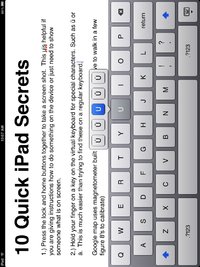
3.) Google map uses iPad’s built in magnetometer to orient map. Just tap on the target at the top of the screen to activate. (Note: You may have to walk in a few figure 8's to calibrate.)
4.) Hold volume down key to instantly mute the audio. The iPhone mute switch was replaced by a rotation lock on the iPad. So this trick gives you a quick way to kill the audio should something start making noise in your next meeting.
5.) iPhone accessories like the component video dock is compatible with iPad video out. I was able to output 480p video to my television using the iPhone cable I got last year.
Also if you have keynote in presenter mode you get a laser pointer onscreen wherever you touch the iPad. It was never mentioned in the feature list but is very cool.
The Cisco WebEx meeting application also supports output to external monitors allowing you to put the meeting on a larger screen.
6.) Holding the Lock button and home button will restart your iPad just like on the iPhone.
7.) Four taps on text will highlight an entire paragraph.
8.) If you are on a very long web page tapping on title bar of safari to return to the top of the page instantly.
9.) Solve wifi problems. You can eliminate some issues with joining wifi networks by making sure if you have a dual radio 2.4 ghz and 5 ghz base station that each network has a different name. I also just added the iPad to the 5 ghz network and removed the 2.4 ghz so it only tries to join 1 network.
10.) Customize home button. You can set the double tap to go to the home screen, activate the iPod or jump to spotlight search. Don't get used to this because iPhone OS 4 is going to use that for multitasking on the iPhone this summer and the iPad this fall.
11.) I know I said 10 but this one was just too good to pass up. While you are reading books in the iBook app any citations that are marked in a passage are hyperlinks. If you touch the citation it will take you to the bibliography page. At the end of each entry there is a return to page option that will take you back to the page you were reading.
These are just a few tips that happen to work on both the iPhone and iPad's. The more time I spend with the iPad the more attached to it I become. It is a great device for content consumption as well in the future for content creation.
This post is being written on a cross country flight. After getting settled into my seat I checked my email, Twitter, Facebook, copied my notes from the notes application into Pages and started writing. Even taking the photo above and putting it in the document. As the iPad spends more time in the wild I am sure we will see more content creation options but that is for a future post.
Note: Italics indicate and edit made to the article after publication. I found this tip right after I posted the article and thought it was just too good not to add.
-- Post From My iPad
Location:US Airways flight 1490 somewhere over the US
1.) Press the lock and home buttons together to take a screen shot. This is helpful if you are giving instructions how to do something on the device or just need to show someone what is on screen.
2.) Hold your finger on a key on the virtual keyboard for special characters. Such as ü or ā. This is much easier than trying to find these on a regular keyboard.

3.) Google map uses iPad’s built in magnetometer to orient map. Just tap on the target at the top of the screen to activate. (Note: You may have to walk in a few figure 8's to calibrate.)
4.) Hold volume down key to instantly mute the audio. The iPhone mute switch was replaced by a rotation lock on the iPad. So this trick gives you a quick way to kill the audio should something start making noise in your next meeting.
5.) iPhone accessories like the component video dock is compatible with iPad video out. I was able to output 480p video to my television using the iPhone cable I got last year.
Also if you have keynote in presenter mode you get a laser pointer onscreen wherever you touch the iPad. It was never mentioned in the feature list but is very cool.
The Cisco WebEx meeting application also supports output to external monitors allowing you to put the meeting on a larger screen.
6.) Holding the Lock button and home button will restart your iPad just like on the iPhone.
7.) Four taps on text will highlight an entire paragraph.
8.) If you are on a very long web page tapping on title bar of safari to return to the top of the page instantly.
9.) Solve wifi problems. You can eliminate some issues with joining wifi networks by making sure if you have a dual radio 2.4 ghz and 5 ghz base station that each network has a different name. I also just added the iPad to the 5 ghz network and removed the 2.4 ghz so it only tries to join 1 network.
10.) Customize home button. You can set the double tap to go to the home screen, activate the iPod or jump to spotlight search. Don't get used to this because iPhone OS 4 is going to use that for multitasking on the iPhone this summer and the iPad this fall.
11.) I know I said 10 but this one was just too good to pass up. While you are reading books in the iBook app any citations that are marked in a passage are hyperlinks. If you touch the citation it will take you to the bibliography page. At the end of each entry there is a return to page option that will take you back to the page you were reading.
These are just a few tips that happen to work on both the iPhone and iPad's. The more time I spend with the iPad the more attached to it I become. It is a great device for content consumption as well in the future for content creation.
This post is being written on a cross country flight. After getting settled into my seat I checked my email, Twitter, Facebook, copied my notes from the notes application into Pages and started writing. Even taking the photo above and putting it in the document. As the iPad spends more time in the wild I am sure we will see more content creation options but that is for a future post.
Note: Italics indicate and edit made to the article after publication. I found this tip right after I posted the article and thought it was just too good not to add.
-- Post From My iPad
Location:US Airways flight 1490 somewhere over the US
Sunday, April 11, 2010
10 Must have iPad Apps
Now that I have spent a week with the iPad and enjoy it thoroughly. I can't wait for iPhone OS 4 to ship later this year to see what new features besides Multitasking that we will get. In the meantime here are a few must have applications to make your iPad the envy of everyone at the local coffee shop.
 1.) Netflix, the application is free but you do have to have a Netflix subscription that offers Internet streaming. The quality of the streaming video is good however it is standard definition currently. The CEO of Netflix stated in an interview that starting this year Netflix will start introducing High Definition streaming this year. It is great for watching movies anywhere anytime you have time and a network connection.
 2.) Twitterriffic is as you might guess used for sending and receiving your tweets on Twitter. It is a free download and is more feature rich than the desktop version and was designed with the iPad in mind. It looks great on the big screen and makes Twitter fun to use.
 3.) GoodReader is for reading PDF's and is only $.99. It allows you to download the PDF's to your iPad from a number of sources. It can be connected to the MobileMe iDisk, drop box, Google Docs, box.net, FilesAnywhere.com, any Generic WebDav server, or even search for shares on the local network. GoodReader will even allow you to turn your iPad into a web server to share your PDF's with other iPad users or PC's or Macs on your local network.
 4.) USA Today is a great free application for getting the current news. It looks like the news paper and is up dated every time you open the application. I can now get the news in the morning without even going to the front door to pick up the paper.
 5.) NPR is another free app that let's you read the news and listen to NPR stations all over the country live.
 6.) The iBooks app free from Apple gives you access to the iBook Store and allows you to download ebooks and read them on your iPad. The User Interface for the iBook application looks just like a real book complete with page turns. Unlike a real book you can change the print size, font, and brightness of the page.
 7.) Amazon Kindle for the iPad is a free application so you can buy books from Amazon and read them on your iPad, iPhone or Kindle and keep all of your bookmarks in sync no matter which device you are using. So you can have all the ebooks available on Kindle and Apple's bookstores right at your fingertips.
 8.) iTap RDP is $11.99 and for those that might need to take remote control of a Windows PC this is a native iPad application so the Windows Desktop looks great on screen. Pinching and Zooming gestures allows you to get in close to a section of screen.
 9.) Star Walk is $4.99 and is a great educational application if you are interested in astronomy. Star Walk uses Location Based Services to find where you are and show you what the sky looks like as you hold the iPad up and look to the sky.

10.)Pages, Numbers, & Keynote are $9.99 each and allows you to create documents right on your iPad. If you have to write a paper, create a spreadsheet or enter data into a spreadsheet or give a presentation you can do that all with the iPad. Apple has some more work to do with these apps getting data in and out more quickly and easily. These are first version applications and I am sure they will mature in time and be as useful as their desktop counterparts.

You can run any iPhone application on the iPad in regular mode the applications fit in the middle of the screen. There is a 2x mode that allows you to double the pixels to blow up an application to full screen on the iPad. Some games and applications look good being pixel doubled. Text usually looks blurry being doubled but is readable.
Many applications for the iPhone are being rewritten for the iPad's larger screen. Some developers are offering the upgrades for free while others are writing whole new applications and charging for them. That is being left up to the individual application developers.
This is just the beginning of the applications that are going to be coming out for the iPad over the next year. As more developers get the iPad in their hands we will see more innovative applications coming down the road. Remember the iPad has only been in the publics hands for only a week.


10.)Pages, Numbers, & Keynote are $9.99 each and allows you to create documents right on your iPad. If you have to write a paper, create a spreadsheet or enter data into a spreadsheet or give a presentation you can do that all with the iPad. Apple has some more work to do with these apps getting data in and out more quickly and easily. These are first version applications and I am sure they will mature in time and be as useful as their desktop counterparts.

You can run any iPhone application on the iPad in regular mode the applications fit in the middle of the screen. There is a 2x mode that allows you to double the pixels to blow up an application to full screen on the iPad. Some games and applications look good being pixel doubled. Text usually looks blurry being doubled but is readable.
Many applications for the iPhone are being rewritten for the iPad's larger screen. Some developers are offering the upgrades for free while others are writing whole new applications and charging for them. That is being left up to the individual application developers.
This is just the beginning of the applications that are going to be coming out for the iPad over the next year. As more developers get the iPad in their hands we will see more innovative applications coming down the road. Remember the iPad has only been in the publics hands for only a week.
Sunday, April 4, 2010
iPad First Look
IPad First Look
 Apples new iPad is a revolution for the tablet computer and is likely to do for the tablet market what the iPhone did for the wireless market. The iPad is already shipping with quite a few apps optimized for it's bright sharp 9.7" LED backlit IPS (In Plane Switching) display. the screen is nice to look at and easy to read. That coupled with a 10 hour battery life really makes the iPad a work horse that easily outshines most net books with a few easily correctable limitations.
Display
The display on the iPad is bright and clear. It looks great even outdoors while wearing polarized sunglasses. Without the sunglasses you get a lot of glare on the screen but next is still readable. The downside of the display is finger prints. Despite a oleo phobic finger prints and smudges occur all over the screen. They are not really visible until you turn off the display. Clean up is easy just wipe the display with a soft cloth or against your shirt and the smudges brush right off. Apple should have included a micro fiber cleaning cloth with the iPad like they do with all of their other notebook computers.
Keyboard

 The on screen keyboard is certainly useable and while I can't quiet touch type on the screen like I can on a real keyboard i think with a little practice I might come close. I am actually writing this review in Pages for the iPad with the on screen keyboard. With built in bluetooth you can also use a physical keyboard if you have a lot of typing. Holding iPad in portrait you can reach all of the keys with your thumbs. In landscape they keyboard is nearly the size of a real keyboard so laying the iPad on your lap or placing it on a table and typing is the easiest way to use that keyboard.
Movies
It has been great for watching movies even without headphones in a quiet room the speaker sounds surprisingly good for a device that is that small. It is thin and light weight although without a stand it does get uncomfortable to hold after about an hour. Netflix is the killer app in this category at the moment. Being able to stream any movie that is available in their library to any device is a cool feature. Currently I can stream Netflix to my iPad, PS3, Wii, Mac, and coming soon iPhone. The CEO of Netflix has already commented they look to not have a need to mail DVD's to customers in the next couple of years. They also announced HD streaming coming this year.
Sling Player is also available for the iPad and rumor has it that Hulu will be coming to an iPad near you soon.
Books
The e-book reader is an elegant app that gives you a very book like feel. I quickly forgot about the device and just settled NGO by book and started reading. Just tap on a word to see it's definition and double tap to set a bookmark. When you are done tap library and your book flies onto shelf and remembers where you were. The ebook store opened with 60,000 titles about 30,000 of which are free titles from project Gutenberg. pricing is about the same as what we saw on Amazon but the navigation on the iBook store leaves much to be desired at the moment. The search feature will take you right to the book if it is the library. They do not yet seem to have a way to add an ebook to your wish list or to gift a book to someone. The good news is if you use iTunes home sharing your books are shared with other members of your household which is s plus.

The Amazon Kindle Reader for iPad doesn't look as nice as iBooks but it is functional and syncs with the iPhone Kindle app, the Kindle and the Kindle for Mac and PC giving you more flexibility about how and where you read. Plus you can buy Kindle ebooks on the Amazon store on the web and they just appear on all of your devices via whisper net. I am sure Amazon will work on the visuals to make the app more attractive on the iPad. I am not ready to get rid of my Kindle in favor of the iPad. At this time it will be another device I will use to read books in addition to the iPad.
Apps
Quite a few apps have been available on day one. I have loaded about 30 so far with more coming every day. With the extra screen real estate it has allowed developers to really get creative with what is possible in the User Interface. There are a few things the iPad does better than the iPhone due to it's size and a few things it does better than a laptop due to it's size, portability and touch interface.
Kleiner Perkins has also offered $200 million to iPad app developers as an investment into new and innovating applications. I think the run away success of this device will come next year when developers really have a chance to re-imagine computer human interaction.
The News

I woke up first thing this morning and without having to step foot out my front door I picked up my iPad and perused USA Today, The Wall Street Journal, and AP Newswire all over mooring coffee and never hand to step foot out my front door to pick up a dead tree edition. While I am reading I can post interesting articles right on Facebook, Twitter, or send it out in an email wit ever having to leave the application. USA today looks just like a newspaper down to the saw tooth page edge at top but updates based on location so I just see my local weather. Stock updates will be coming later right on the Money page. Wall Street Journal looks like a news paper but includes when it was updated in the tag line and also integrates video right into the page. It isn't quite the auto updating smart paper in Minority Report but we are getting close. The AP Newswire took a totally different approach with summaries floating in little boxes on the bottom of the page you can slide around and video clips you can tap and play. All these options are great approaches to sharing the news and if local papers jump on board and keep subscription prices under the print editions this might actually help save the news paper business after all.
To 3G or not to 3G
That is the question. In order to get one in my hands quickly I opted to go with wifi only. On the first day we took our iPads out to eat. The rester aunt we choose happened to not have wifi seriously limiting what our iPads could do. That being said I use fairly little 3G data monthly with AT&T since most of the time I happen to be around wifi. Most of the time I will hardly notice the lack of 3G and GPS in the wifi model. First to have the 3G I would have to wait another month and pay an extras $130 for the device. Plus buy a 14.95 250 GB monthly plan or 19.95 a month unlimited data plan (no contracts) but still I already pay for a data plan for my iPhone why not just use tethering? AT&T is not allowing us to tether any device to our iPhone. I don't want to pay for a data plan for three devices iPhone, iPad, and Macbook Pro so if I decide I need to use the iPad for data when wifi is not available I will look at alternatives like Sprint 4G Overdrive or Verizon mi-fi cards where I can tether my laptop, iPad, and usually up to 5 devices to get online. Also jail breaking the iPhone and tethering is an option for those who wish to do so.
Web Surfing
 The web surfing experience is good on the iPad. The browser is fast and pages load quickly. Sites are quickly creating iPad optimized versions that are free from Flash and Brightcove the company that provides streaming video to many newspaper sites announcing they are moving from Flash to HTML5 we should see fewer and fewer of those missing plugin icons as Flash slowly goes away.
The Good
With an amazing screen, processor speed, and battery life the iPad is a very capable and reasonably priced device that will have a prominent place in my daily work flow. While on my desk it can be a large digital photo frame, while at Coffee Bean it can be my word processor, web browser and place to store notes. I always have my library of books at the ready in case I have an odd moment to read. I am waiting to see some nice audio recording apps for mobile podcasting on this platform. The sky is really the limit with this device.
The Bad
I have to harp on Apple for the closed file system and no built in PDF reader/editor. you can open and view PDF's in email but that is it. When I connect my iPad to my computer I don't get a drive on my desktop to drag and drop files. That is a huge oversight I hope to see corrected. I would also like built in access to my iDisk so I can store documents on MobileMe and move seamlessly between working on a document on my desktop, laptop, and iPad. Getting documents out of Pages on the iPad and into the the computer isn’t very intuitive at all and could easily result in having multiple versions of a document. I haven’t seen a way to auto sync them yet. This feature is going to need a lot of work yet.
No iPad, iPhone sync to iTunes over wireless. We have been asking the iPhone to do this for years and we do get wireless updates for contacts, calendar and email but I want to see music, movies, and data work this way. I want to play Plants vs. Zombies on my iPhone while waiting in line for my coffee and when I return home my iPhone tell my computer it has an update and then update my iPad so when I pick it up I can pick up where I left off.
Every Apple display and laptop ships with a camera to use Apple's iChat program. It is a useful cool for chatting and collaborating with colleagues. While we do have AIM text chat on the iPad and Skype will be coming soon to the iPad I really feel the iPad is missing out on the ability to video conference from anywhere. How cool would it be to be able to see and hear anyone from anywhere anytime? I could be sitting on a tropical beach somewhere and with a tap of my iPad call up a friend and show them where I am hanging out at the moment or share live so breaking news or historic event.
Finally with all of the power the iPad has, multitasking for all apps needs to come to the iPad and maybe a beefed up iPhone sporting this fast Apple A4 processor.
Conclusion
The iPad is extremely intuitive to use and if you have an iPhone or iPodTouch then you know how to use this device. The iPad will certainly change the way I work and the way I am entertained. I will likely carry it with me almost everyday and sometimes even opt to leave larger laptop at home. It is certainly worth every penny and is almost a good replacement for net books once we have video cameras and printing built into the device. Apple said this isn't meant to compete against the net books but it really does and within a year has the potential to make the net book irrelevant if they can just give us a few more features.
For the haters out there who have been criticizing the iPad without first holding one and trying it for yourself you do not know what you are missing out on. Once you have had some time with it and imagine how you can use it you are going to love it.

Display
The display on the iPad is bright and clear. It looks great even outdoors while wearing polarized sunglasses. Without the sunglasses you get a lot of glare on the screen but next is still readable. The downside of the display is finger prints. Despite a oleo phobic finger prints and smudges occur all over the screen. They are not really visible until you turn off the display. Clean up is easy just wipe the display with a soft cloth or against your shirt and the smudges brush right off. Apple should have included a micro fiber cleaning cloth with the iPad like they do with all of their other notebook computers.
Keyboard


Movies
It has been great for watching movies even without headphones in a quiet room the speaker sounds surprisingly good for a device that is that small. It is thin and light weight although without a stand it does get uncomfortable to hold after about an hour. Netflix is the killer app in this category at the moment. Being able to stream any movie that is available in their library to any device is a cool feature. Currently I can stream Netflix to my iPad, PS3, Wii, Mac, and coming soon iPhone. The CEO of Netflix has already commented they look to not have a need to mail DVD's to customers in the next couple of years. They also announced HD streaming coming this year.
Sling Player is also available for the iPad and rumor has it that Hulu will be coming to an iPad near you soon.
Books
The e-book reader is an elegant app that gives you a very book like feel. I quickly forgot about the device and just settled NGO by book and started reading. Just tap on a word to see it's definition and double tap to set a bookmark. When you are done tap library and your book flies onto shelf and remembers where you were. The ebook store opened with 60,000 titles about 30,000 of which are free titles from project Gutenberg. pricing is about the same as what we saw on Amazon but the navigation on the iBook store leaves much to be desired at the moment. The search feature will take you right to the book if it is the library. They do not yet seem to have a way to add an ebook to your wish list or to gift a book to someone. The good news is if you use iTunes home sharing your books are shared with other members of your household which is s plus.

The Amazon Kindle Reader for iPad doesn't look as nice as iBooks but it is functional and syncs with the iPhone Kindle app, the Kindle and the Kindle for Mac and PC giving you more flexibility about how and where you read. Plus you can buy Kindle ebooks on the Amazon store on the web and they just appear on all of your devices via whisper net. I am sure Amazon will work on the visuals to make the app more attractive on the iPad. I am not ready to get rid of my Kindle in favor of the iPad. At this time it will be another device I will use to read books in addition to the iPad.
Apps
Quite a few apps have been available on day one. I have loaded about 30 so far with more coming every day. With the extra screen real estate it has allowed developers to really get creative with what is possible in the User Interface. There are a few things the iPad does better than the iPhone due to it's size and a few things it does better than a laptop due to it's size, portability and touch interface.
Kleiner Perkins has also offered $200 million to iPad app developers as an investment into new and innovating applications. I think the run away success of this device will come next year when developers really have a chance to re-imagine computer human interaction.
The News

I woke up first thing this morning and without having to step foot out my front door I picked up my iPad and perused USA Today, The Wall Street Journal, and AP Newswire all over mooring coffee and never hand to step foot out my front door to pick up a dead tree edition. While I am reading I can post interesting articles right on Facebook, Twitter, or send it out in an email wit ever having to leave the application. USA today looks just like a newspaper down to the saw tooth page edge at top but updates based on location so I just see my local weather. Stock updates will be coming later right on the Money page. Wall Street Journal looks like a news paper but includes when it was updated in the tag line and also integrates video right into the page. It isn't quite the auto updating smart paper in Minority Report but we are getting close. The AP Newswire took a totally different approach with summaries floating in little boxes on the bottom of the page you can slide around and video clips you can tap and play. All these options are great approaches to sharing the news and if local papers jump on board and keep subscription prices under the print editions this might actually help save the news paper business after all.
To 3G or not to 3G
That is the question. In order to get one in my hands quickly I opted to go with wifi only. On the first day we took our iPads out to eat. The rester aunt we choose happened to not have wifi seriously limiting what our iPads could do. That being said I use fairly little 3G data monthly with AT&T since most of the time I happen to be around wifi. Most of the time I will hardly notice the lack of 3G and GPS in the wifi model. First to have the 3G I would have to wait another month and pay an extras $130 for the device. Plus buy a 14.95 250 GB monthly plan or 19.95 a month unlimited data plan (no contracts) but still I already pay for a data plan for my iPhone why not just use tethering? AT&T is not allowing us to tether any device to our iPhone. I don't want to pay for a data plan for three devices iPhone, iPad, and Macbook Pro so if I decide I need to use the iPad for data when wifi is not available I will look at alternatives like Sprint 4G Overdrive or Verizon mi-fi cards where I can tether my laptop, iPad, and usually up to 5 devices to get online. Also jail breaking the iPhone and tethering is an option for those who wish to do so.
Web Surfing

The Good
With an amazing screen, processor speed, and battery life the iPad is a very capable and reasonably priced device that will have a prominent place in my daily work flow. While on my desk it can be a large digital photo frame, while at Coffee Bean it can be my word processor, web browser and place to store notes. I always have my library of books at the ready in case I have an odd moment to read. I am waiting to see some nice audio recording apps for mobile podcasting on this platform. The sky is really the limit with this device.
The Bad
I have to harp on Apple for the closed file system and no built in PDF reader/editor. you can open and view PDF's in email but that is it. When I connect my iPad to my computer I don't get a drive on my desktop to drag and drop files. That is a huge oversight I hope to see corrected. I would also like built in access to my iDisk so I can store documents on MobileMe and move seamlessly between working on a document on my desktop, laptop, and iPad. Getting documents out of Pages on the iPad and into the the computer isn’t very intuitive at all and could easily result in having multiple versions of a document. I haven’t seen a way to auto sync them yet. This feature is going to need a lot of work yet.
No iPad, iPhone sync to iTunes over wireless. We have been asking the iPhone to do this for years and we do get wireless updates for contacts, calendar and email but I want to see music, movies, and data work this way. I want to play Plants vs. Zombies on my iPhone while waiting in line for my coffee and when I return home my iPhone tell my computer it has an update and then update my iPad so when I pick it up I can pick up where I left off.
Every Apple display and laptop ships with a camera to use Apple's iChat program. It is a useful cool for chatting and collaborating with colleagues. While we do have AIM text chat on the iPad and Skype will be coming soon to the iPad I really feel the iPad is missing out on the ability to video conference from anywhere. How cool would it be to be able to see and hear anyone from anywhere anytime? I could be sitting on a tropical beach somewhere and with a tap of my iPad call up a friend and show them where I am hanging out at the moment or share live so breaking news or historic event.
Finally with all of the power the iPad has, multitasking for all apps needs to come to the iPad and maybe a beefed up iPhone sporting this fast Apple A4 processor.
Conclusion
The iPad is extremely intuitive to use and if you have an iPhone or iPodTouch then you know how to use this device. The iPad will certainly change the way I work and the way I am entertained. I will likely carry it with me almost everyday and sometimes even opt to leave larger laptop at home. It is certainly worth every penny and is almost a good replacement for net books once we have video cameras and printing built into the device. Apple said this isn't meant to compete against the net books but it really does and within a year has the potential to make the net book irrelevant if they can just give us a few more features.
For the haters out there who have been criticizing the iPad without first holding one and trying it for yourself you do not know what you are missing out on. Once you have had some time with it and imagine how you can use it you are going to love it.
Sunday, March 28, 2010
Virtualization on the Mac
Since Apple moved the Mac to the Intel Platform we as Mac users can now run just about any software we want. From software for OS X, Unix Programs, even Windows Programs. Let’s see a Windows computer do that quickly and easily. However with these new options come a number of choices for how to run Windows software on the Mac. We have a range a prices and easy of use.
Yes, I know we actually could run Windows on the Mac in the Power PC days using an emulator but emulators were much slower than their real hardware counter parts. For those who remember way back at one point Apple even made a DOS card that could be installed in some 68k Macs and was a PC on card and you could run a Mac program to execute programs on your PC on card but I digress.
Today our leading pay options for Virtualization on the Mac is Parallels and VMWare Fusion. The leading free options are Sun’s Virtual Box and Apple’s Boot Camp. You can also run Windows applications without installing Windows at all by using WINE or CrossOver. We will look at each of these options in turn.
In a recent MacTech Magazine article they compared the performance of VMWare to Parallels. Parallels won in nearly every performance benchmark. Now in order to use VMWare, Parallels, or Sun Virtual Box you have to own a copy of Windows to install. These applications provide a virtual computer to load an OS and your applications into. Parallels and VMWare both have good technical support and the ability to import other virtual machines into them. Today there are a variety of free and for purchase virtual machines you can get on the Internet and install into your Virtualization software. If you want to setup a Web Server on a virtual machine just download one with Linux and Apache pre-setup boot it and you are ready to go. It is great for testing products without impacting the machine you use on a daily basis.
Sun’s Virtual Box has come a long way and is close to being real competition for VMWare and Parallels. It started off as a very basic Virtual Machine lacking even support for external USB hard drives. Now it is a solid performer runs on Mac, Windows, and Linux as much better driver support in version 3 and while still not on par performance wise with VMWare and Parallels it is a fine choice for someone who doesn’t use a Virtual Machine on a regular basis or just wants to run some applications where performance isn’t a huge concern.
WINE and it’s commercial counterpart CrossOver have been around since before Apple went to Intel. Originally WINE which stands for (Wine Is Not an Emulator) was developed for Unix and Linux users to run Windows based apps on their machines without Windows being installed. WINE is a freeware application that is developed and supported by the community. This option is not for the technical novice or the faint at heart. It can be tough to configure and not all applications are supported. There is a commercial version of the software put out by CodeWeavers called CrossOver that is a company supported version of WINE. I didn’t have a lot of luck with it myself when I tired it out in 2007 but it may have progressed since then. I will look at it in a future blog post.
Even Apple has dipped a toe into the fray with OS 10.5 and 10.6 by introducing Boot Camp. This doesn’t technically fall under the realm of virtualization since it is just allowing you to dual boot your Mac into OS X or Windows. This does allow you run Windows apps on your Mac but not while you are in OS X. Parallels and VMWare do provide a way to launch your Boot Camp Windows partition while you are running OS X which just treats the Boot Camp partition like any other virtual machine except it has a real drive partition. Boot Camp requires you to dedicate a partition on your hard drive to running Windows and you may find a time when you just need to run Windows by itself. You do still have to buy a separate copy of Windows though.
So if you are looking to run Windows Applications on your Mac and don’t mind spending a little money a copy of Parallels and Windows 7 is going to give you the best performance and support.
If you are on a tight budget Sun’s Virtual Box and Windows 7 is a good alternative. The performance is still good and you can save the $79.00 by getting a free Virtualization software.
If you don’t want to spend any money to run Windows and have time on your hands to learn a lot about how applications work and interact with the Operating System then the best alternatives I have found have been WineBottler and Wineskin. These two apps take your Windows Application and package them into a Application that can reside in your Applications folder just like your Mac applications. When you launch WineBottler or WineSkin it will run the X11 program that is by default installed on OS X 10.5 and 10.6. For OS X versions 10.3 - 10.4 you may have to go back to your installer CD or DVD to install X11 to make these programs work.
So we have come a long way since the days of a DOS card in our 68k Macs or running Connectix Virtual PC on our Power PC machines. Now with the power of BSD Unix under the hood of Mac OS and an Intel Processor at the heart of our computers Mac users now have the power to run virtually any application or Operating System we might want to right from the comfort of our primary or possibly now only machine. So no matter what software you run or what industry you might be in or what ever you might be studying in school there is a way to configure your Mac to meet your needs today and into the future.
Yes, I know we actually could run Windows on the Mac in the Power PC days using an emulator but emulators were much slower than their real hardware counter parts. For those who remember way back at one point Apple even made a DOS card that could be installed in some 68k Macs and was a PC on card and you could run a Mac program to execute programs on your PC on card but I digress.
Today our leading pay options for Virtualization on the Mac is Parallels and VMWare Fusion. The leading free options are Sun’s Virtual Box and Apple’s Boot Camp. You can also run Windows applications without installing Windows at all by using WINE or CrossOver. We will look at each of these options in turn.
In a recent MacTech Magazine article they compared the performance of VMWare to Parallels. Parallels won in nearly every performance benchmark. Now in order to use VMWare, Parallels, or Sun Virtual Box you have to own a copy of Windows to install. These applications provide a virtual computer to load an OS and your applications into. Parallels and VMWare both have good technical support and the ability to import other virtual machines into them. Today there are a variety of free and for purchase virtual machines you can get on the Internet and install into your Virtualization software. If you want to setup a Web Server on a virtual machine just download one with Linux and Apache pre-setup boot it and you are ready to go. It is great for testing products without impacting the machine you use on a daily basis.
Sun’s Virtual Box has come a long way and is close to being real competition for VMWare and Parallels. It started off as a very basic Virtual Machine lacking even support for external USB hard drives. Now it is a solid performer runs on Mac, Windows, and Linux as much better driver support in version 3 and while still not on par performance wise with VMWare and Parallels it is a fine choice for someone who doesn’t use a Virtual Machine on a regular basis or just wants to run some applications where performance isn’t a huge concern.
WINE and it’s commercial counterpart CrossOver have been around since before Apple went to Intel. Originally WINE which stands for (Wine Is Not an Emulator) was developed for Unix and Linux users to run Windows based apps on their machines without Windows being installed. WINE is a freeware application that is developed and supported by the community. This option is not for the technical novice or the faint at heart. It can be tough to configure and not all applications are supported. There is a commercial version of the software put out by CodeWeavers called CrossOver that is a company supported version of WINE. I didn’t have a lot of luck with it myself when I tired it out in 2007 but it may have progressed since then. I will look at it in a future blog post.
Even Apple has dipped a toe into the fray with OS 10.5 and 10.6 by introducing Boot Camp. This doesn’t technically fall under the realm of virtualization since it is just allowing you to dual boot your Mac into OS X or Windows. This does allow you run Windows apps on your Mac but not while you are in OS X. Parallels and VMWare do provide a way to launch your Boot Camp Windows partition while you are running OS X which just treats the Boot Camp partition like any other virtual machine except it has a real drive partition. Boot Camp requires you to dedicate a partition on your hard drive to running Windows and you may find a time when you just need to run Windows by itself. You do still have to buy a separate copy of Windows though.
So if you are looking to run Windows Applications on your Mac and don’t mind spending a little money a copy of Parallels and Windows 7 is going to give you the best performance and support.
If you are on a tight budget Sun’s Virtual Box and Windows 7 is a good alternative. The performance is still good and you can save the $79.00 by getting a free Virtualization software.
If you don’t want to spend any money to run Windows and have time on your hands to learn a lot about how applications work and interact with the Operating System then the best alternatives I have found have been WineBottler and Wineskin. These two apps take your Windows Application and package them into a Application that can reside in your Applications folder just like your Mac applications. When you launch WineBottler or WineSkin it will run the X11 program that is by default installed on OS X 10.5 and 10.6. For OS X versions 10.3 - 10.4 you may have to go back to your installer CD or DVD to install X11 to make these programs work.
So we have come a long way since the days of a DOS card in our 68k Macs or running Connectix Virtual PC on our Power PC machines. Now with the power of BSD Unix under the hood of Mac OS and an Intel Processor at the heart of our computers Mac users now have the power to run virtually any application or Operating System we might want to right from the comfort of our primary or possibly now only machine. So no matter what software you run or what industry you might be in or what ever you might be studying in school there is a way to configure your Mac to meet your needs today and into the future.
Friday, February 19, 2010
Mac Battery Health
Most of Macs sold are mobile machines and as a mobile machine we tend to use them when plugging in isn’t convenient. Battery health is an important part of mobile computing. If you don’t have access to power and your battery is dead there isn’t much point in having the laptop.
There are a few ways to check the health of your battery. Third party apps, and built in apps in OS X. First I will start with the third party free ware apps.
Battery Health and Status Monitor from SonoraGraphics http://www.sonoragraphics.com/batteryhealth.html is a great freeware program that will tell you about your batteries original capacity, current capacity and charge cycles.

This gives you a great quick overview of how your battery is doing and if it might need to be replaced.

In OS X 10.6 a new feature was added to the menu bar. If you press
and click on the battery you will get additional information about your battery. In this case it adds Condition and tells you what the status of your battery. The third place you can check for that status of your battery is System Profiler. Open your System Profiler and click on Power and it will tell you everything about the status of your battery and power management settings. If the indicator tells you to replace the battery or it is in a status other than Normal and you have fewer than 300 Charge Cycles on the battery take it into an Apple Store or call Apple Technical Support. they may replace your battery if it is defective. The newer model laptops batteries are typically good for 1000 charge cycles while the older machines are usually good for about 300 charge cycles. I replace my battery typically every two years to maximize my battery life. Now you can get an external power pack with a mag safe connector to allow you to run your laptop between 11 and 26 hours depending on model laptop and model of HyperMac http://www.hypershop.com/HyperMac-External-MacBook-Battery-and-Car-Charger-s/91.htm you are using. It can also recharge iPhones and other USB devices. I know the Mac Geek Gab is doing a little battery survey so pop on over and participate in the survey http://www.macobserver.com/tmo/article/mac_laptop_battery_life_survey/?utm_campaign=shorturl it will be interesting for us to find out how these batteries really work.
Friday, February 12, 2010
MacGourmet Deluxe Review
The MacGourmet Deluxe is iTunes for recipes. It is a easy to use Kitchen Management System for the rest of us. With a few simple controls across the top of the Window and a simple search bar allowing a search on any or all fields to find the recipe you are looking for just like your music.
This is a very powerful and easy to use tool for storing recipes, planning menus, building cookbooks, managing nutrition or anything else an amateur or professional epicurean can dream up.
With user created Recipe Books and Smart Recipe books you can store your recipes in any way you like or have the computer keep track of recipes based on the criteria you set. One of the default smart recipes books is Recipes I Have Prepared. So you can mark an item as prepared so you can track what you have made in the past.
MacGourmet comes with some recipes already built in and you can always add your own recipes or click on the Featured section to find new recipes from Mac.Gourmet.com. If you find a recipe on the web you like. Just highlight it, click Services, Mac Gourmet, and Make a Text Clipping and the whole recipe is immediately stored in your Clippings folder and can be imported as a recipe card any time. The import is not an automatic process it requires highlighting sections of the clipping and identifying it to the application but at least you don' have to retype anything.
The application also includes the ability to store notes about foods and wines you have eaten, keep historical shopping lists and make notes on where you can pick up those hard to find items. This program is a gastronomic diary for the food and drink lover in you.
MacGourmet also supports the creation of shopping lists based on the recipes you select so you can just pick your recipes print your shopping list and head out to the store. This makes the shopping task much simpler if you sit down and use the built in meal planner, you can plan your meals, build your shopping list and access the recipe when you need to prepare the meal all in one easy place. For an additional $4.99 you can also add the iPhone or iPod touch application to your phone and share the recipes and lists between your desktop and handheld device. I think for deluxe they should include the iPhone app for free.
MacGourmet also lets you share your recipes on your MobileMe website right out of the application or send the recipe to friends via email. There is Bonjour sharing component built in for those who have multiple Macs at home and you want to share recipes between them.
Once you are ready to head to the kitchen you have a few options. The iPhone or iPod Touch add on app for $4.99, print the recipe on paper, or take your laptop to the kitchen and click on the Chef View. This gives you a large print view you can read at a distance to keep your Mac clear of the work area and out of harms way while still making the recipes readable at a distance.
The application has a lot of power available but it does have a few shortcomings. All of this data is of course stored locally on your PC but doesn't include a conduit for MobileMe syncing of its database. So make sure you use a backup program so you don't loose your recipes and notes in the event of disaster. Not including the iPhone app is a little disappointing. I would love to be able to plan a meal and send the shopping list right to my iPhone or the iPhone of whomever is doing the shopping. Not being able to send the list directly to email is a bit of a let down as well. Mac Gourmet could benefit from some additional online access to list and store new recipes. Perhaps Amazon could add some e-cookbooks for a low price to add to collections as well as a free downloadable web standard for recipes so surfers can just click and cook.
This app is flexible and allows you to use as many or as few of the features as you like. It is only limited by the imagination and training of its user. I know this tool is a must have for this tech geeks kitchen.
Pros:
Easy to use familiar interface, lots of great features for the diet conscious, and comes with some great tasty recipes.
Cons:
The iPhone App should be free for deluxe users, Easier import method for online recipes, a scanning feature to scan in existing paper recipes are definitely lacking.
Wednesday, February 3, 2010
Why I disagree with "10 Reasons to pass on iPad" and 10 reasons I want an iPad

I read this 10 reasons to pass on the iPad on Tech Republic this morning http://blogs.techrepublic.com.com/10things/?p=1324&tag=nl.e101 and just had to write the 10 things that refute the argument of why to pass on an iPad.
1.) Physical Keyboard, there is an accessory dock that has a physical keyboard or you can connect via a Bluetooth keyboard. (This person didn’t pay much attention in the presentation)
On Screen size the larger size is a convenience that is better than the iPhone for viewing and not as cumbersome as a 17” notebook. As long as the device does some things better than an iPhone and some things better than a laptop around the price of a net book it is going to be a hit.
2.) The Net books don’t have usable track pads and require mice to be attached. Also lack the CPU power and battery life the new iPad offers. IF you want a 10 hour battery your net book would weigh about 3-5 lbs. For 1.5 lbs. you would only get about 2 hours out of it not 10 hours the iPad offers.
3.) Running iPhone OS there is software to allow you to remote control your Mac from the tablet. So you get the Power of a desktop in the palm of your hand through Remote Desktop. iPhone OS is OS X with a touch interface on top. They do restrict what apps can be loaded and only allow what is in the app store but that could be altered in the future and it creates an app ecosystem most developers like and was responsible for the smash hit the iPhone became despite bugs in the process.
4.) There is never enough storage. No matter how much you put in someone will always want more. 64 GB is a good starting point. A net book with more storage would have a mechanical drive or a much more expensive SSD drive. As the price of flash drops and tech improves we will get more storage. The iPhone grew from 8 GB to 32 GB in two years. Two years from now the iPad will probably ship with 256 GB of storage and my laptop will have 2 TB of storage.
5.) Again not paying attention. I don’t have HDMI on my iPhone either but the Dock Connector can output 480p to my Television, and guess what the Dock connector accessory for the iPad can output 720p to a Television via a 30 pin to component video output that will be available day one. I agree not having the camera kind of bites. I was looking forward to video conferencing with it and there is a space for a camera in the hardware but for some reason Apple didn’t include it. It could have been price or another technical issue. It will come in the future I have no doubt. (The iPad SDK includes Frameworks for Camera support in the Address book and other places, as well as Cisco wrote the Cisco Unified Personal Communicator client to use a Camera for their iPad version).
6.) I didn’t know they were going to have a USB adapter for the dock connector. That is kind of cool. Keeping it thin and light they had to leave out the USB. It still has Wi-Fi and Bluetooth. There is no reason you couldn’t access remote storage via Wi-Fi. I have 20 gigs of storage on my iDisk and I bet I will have access to that via the iPad.
7.) Flash card access is available via the dock connector and to keep it thin and light something had to give. Most users wouldn’t use the Flash card slot anyway. You can’t put one in for every format and keep the thing .5 thick.
8.) It costs Apple $259.00 for the parts to build an entry level unit. So if they sell them at cost they could make this guys target price. Acer has already announced they can’t make a competitive product at that price point and make a profit on it so they are not going to even try and compete with Apple. The pricing is really good for the device and you get what you pay for. If you want a low performing slow net book then great spend $299 and use it as a photo frame. If you want fast and do many things including a really sensitive touch screen $499 and you are in business.
9.) It was unveiled a week ago. I am sure third party manufactures will be quick to start making items for the iPad just like they did the iPhone. I have a Belkin Tune Dock in my car, a Kensington charger in the truck, third party headphones for music, cases made by InCase, and a charger/speaker system from iHome. This will happen for the iPad too once it hits the market. How many people really carry spare laptop batteries or phone batteries with them? How do you keep them charged? Currently Mophie makes a Juicepack that plugs into the iPhone and recharges the battery to double the life of your phone. I am sure there will be a Mophie iPad case to allow you to go 20 plus hours and not need to recharge. Then you can recharge your device while you sleep. The iPad CAN run Skype in fact Skype runs on the iPhone so that will be available day one. Flash isn’t available that is correct. HTML5 looks nice and You Tube is already testing it and rumor has it Hulu is heading that way too. I can already view You Tube and UStream on my iPhone without flash. Flash is a processor and battery hog that slows my laptop down when it runs and spins up the fans. Why would I want it on my smart phone or iPad? It is time for the world to move to HTML5 and the iPhone and now the iPad will push that trend along.
10.) Wi-Fi is almost everywhere now so getting access shouldn’t be that tough if you use the Wi-Fi only model. The iPad 3G is unlocked which means ANY GSM providers microGSM card should work in the device. AT&T was just the first one announced, I am sure T-Mobile and others will be along soon. Besides you can also just carry a MiFi device and connect through the Wi-Fi to any carrier you choose and your laptop can get on as well. Sooner or later tethering will come to the iPhone as well and they will likely add a way for Wi-Fi iPad users to communicate with the Internet via the iPhone in their pocket via Bluetooth or Wi-Fi.
Now the 10 reasons I would own an iPad.
1.) Sitting on my desk in a stand it will make a beautiful Electronic Picture Frame for my photos. A Kodak EasyShare 10” Digital Photo Frame is about $175.00
2.) Color Ebook Reader. My Kindle isn’t color but still currently costs about $489.00 for a 9.7” DX model.
3.) Watch movies while traveling and even be able to rent them from the iTunes store while traveling and download to the device. Sony 9” portable DVD player is about $169.00 rentals of course if you can find a place to rent a movie while traveling.
4.) Work on Documents and Presentations while on the go. Sony Vaio 10.1 inch screen and 7 hours of battery life with Windows 7 $459.77
5.) Read the Newspaper while on the go. Ok this one is only .50 - $1.50 depending on the newspaper but it doesn’t update and isn’t good for the environment.
6.) Play Games while I am out and about. Sony PSP $241.00
7.) Take notes in meetings. Could use a computer or a notebook but it is much easier to find electronic notes later.
8.) Share You Tube Videos with friends on a larger screen. Plus I don’t have stop my video to take a call.
9.) The E-mail looks far more readable and manageable on the larger screen without being stuck behind my laptop
10.) Remote access my Mac and PC’s for work. It would be nice to be sipping a latte in Starbucks and get a call on my iPhone that someone needs me to fix something real quick for them and I just close my book on my iPad and open up a remote desktop and using the virtual keyboard and touch screen fix the problem and then go back to my book right where I left off.
There are obviously other devices that can do what the iPad does, not as attractive and not as user friendly. To buy all the devices to do what it does would cost about $1,535.27 or about the cost of a 15” Macbook Pro. So it is quite a value for what the device is capable of. The iPhone grew in its first two years of life and added features and functions as I am sure the iPad will as well. I think this is going to revolutionize how and where people work.
I would like to see a camera for video conferencing. I was really hoping to see that on this version so that video conferencing could really go mainstream. I would like to have multi-tasking or something like freezing an app in a state when it gets back grounded so I can pick up right where I left off when I return to it and use Push Notifications to tell me if an app got an update. But above all I want the device to be fast, stable, and have a good battery life.
Friday, January 8, 2010
iTunes Error (-9812) iTunes for Windows
Normally I just focus on Mac and iPhone tech. However I ran into this problem yesterday and spent hours looking for a solution so I thought this would be a good time to help out our Windows friends who use iTunes and haven't made the jump to Mac just yet.
Yesterday I looked at a computer running Windows 7 and iTunes 9 that could access the iTunes store but would fail when trying to login to iTunes with an Unable to connect to iTunes (-9812) Error message.
This particular error has a very quick fix that works for Windows XP, Windows Vista, and Windows 7. The SSL connection to the iTunes store is failing due to a bad certificate. Just goto http://www.microsoft.com/downloads/details.aspx?FamilyID=f814ec0e-ee7e-435e-99f8-20b44d4531b0&displaylang=en and download the May 2009 Root Certificate update and the bad certificate will be replaced with a good one and you can just restart iTunes and login to your account.
Yesterday I looked at a computer running Windows 7 and iTunes 9 that could access the iTunes store but would fail when trying to login to iTunes with an Unable to connect to iTunes (-9812) Error message.
This particular error has a very quick fix that works for Windows XP, Windows Vista, and Windows 7. The SSL connection to the iTunes store is failing due to a bad certificate. Just goto http://www.microsoft.com/downloads/details.aspx?FamilyID=f814ec0e-ee7e-435e-99f8-20b44d4531b0&displaylang=en and download the May 2009 Root Certificate update and the bad certificate will be replaced with a good one and you can just restart iTunes and login to your account.
Sunday, November 15, 2009
Apple Magic Mouse

The mouse is attractive and smooth and looks like a piece of art sitting on your desk. Using the whole surface to scroll up, down, left and right is convenient. The swipe to move between pages isn't as easy to use as you have to hold the mouse between your fingers and use your middle to fingers to swipe. It is nice to be able to do it but I find most of the time I just scroll to the next page.
The scroll speed is dependent on how fast you swipe and will keep going once you have taken your hand off the mouse until you put your finger down on the mouse to stop immediately or allow the scrolling to decelerate slowly on it's own, a handy feature if you are looking for things fast.
The right click worked as soon as I turned the mouse on. The gestures required a software update which OS X will download and install as soon as you run Software Update after connecting the mouse. The one odd thing I noticed is I had right click until I installed the Software Update then I had to go in the mouse settings and turn right click back on. If you are on 10.6.2 the drivers are already included and you can just turn the mouse on pair it and go. The mouse uses Bluetooth to connect to the computer so any Mac made in the last five years probably has Bluetooth built in and Macs older than that can have Bluetooth added via a USB Bluetooth adapter. I have tested several models and have not had one fail to work yet. So far Windows users do not have software to run the Magic Mouse on Windows with touch support.
The tracking on the desk is typical for Apple it moves kind of slow and you have to travel further across the desk to get around the screen. Unless of course you install Mouse Zoom http://www.versiontracker.com/dyn/moreinfo/macosx/12205 on your machine and then you can speed your mouse up as much as you want.
As a whole I think Apple did a better job with this mouse but they still have a way to go. Magic Mouse lacks the pinch and stretch gestures that were introduced on the iPhone and later made their way into the entire Apple line of trackpads. Hopefully we will see some software updates coming from Apple to make the Magic Mouse more useful and make me less tempted to move from my Magic Mouse back to the trackpad at the bottom of my keyboard. The mouse is worth the $69.00 US for purchase if you are looking for a new mouse but I wouldn't rush out to replace the Mighty Mouse if you already have it and the new Magic Mouse comes with the new model iMacs giving users the opportunity to make a powerful computer also make a powerful statement as art.
Subscribe to:
Posts (Atom)
Apple TV
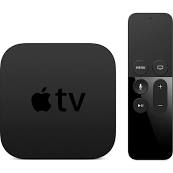
The more I use the new Apple TV the more I like it. The previous model was likable and easy to use but we had no options for live content. N...
-
 My consulting business has been growing and people are starting to ask if they can pay by credit card. I had a system I setup in 2012 but o...
 -
Normally I just focus on Mac and iPhone tech. However I ran into this problem yesterday and spent hours looking for a solution so I thought...